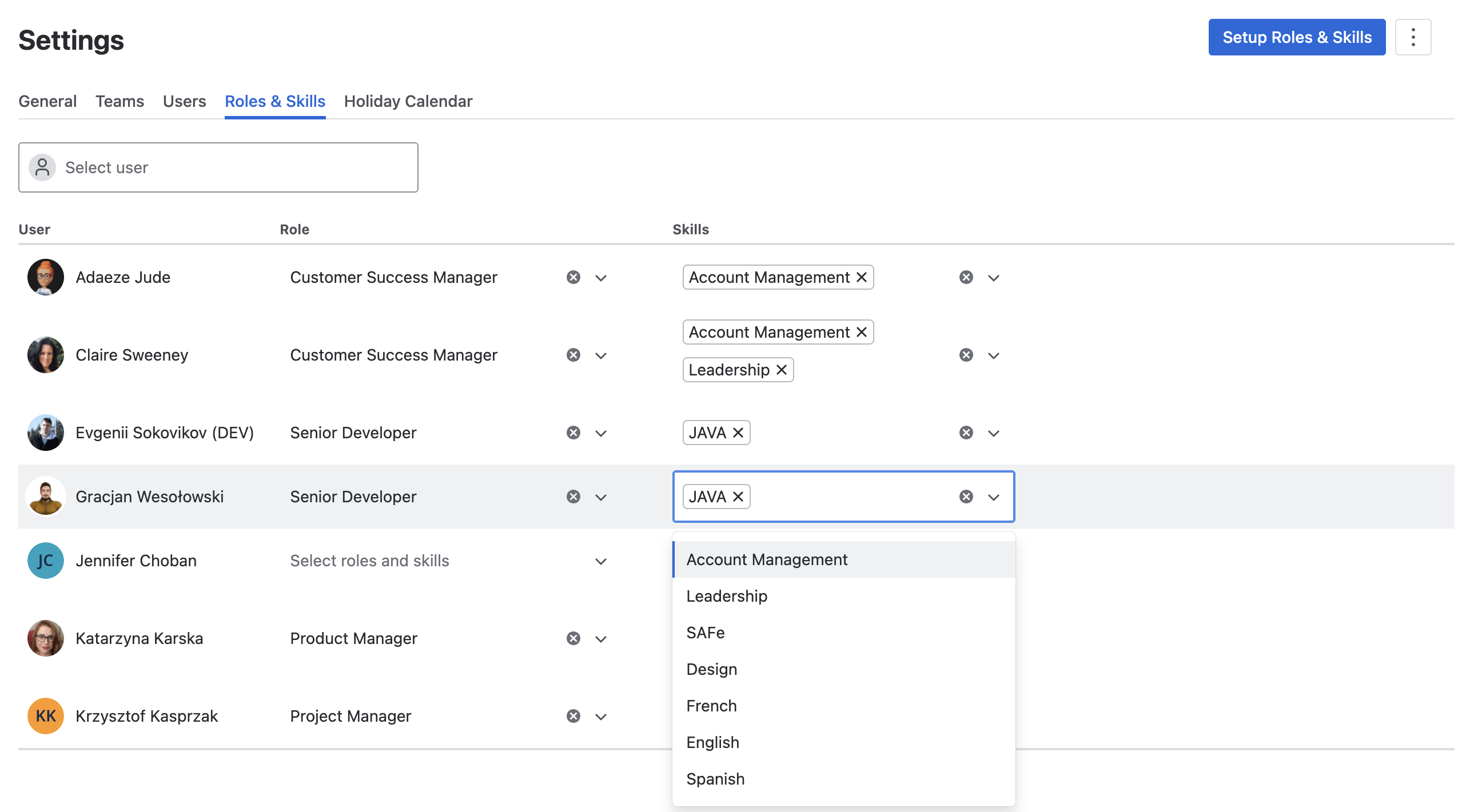
The advanced edtion of Portfolio allows you to create Roles and Skills which can be associated with individual users. You can then create Resource Requests in the capacity planner, identifying users who have both the necessary skills and availability.
Create a Role
To create a new Role:
-
Navigate to Apps > Portfolio and select Settings in the left nav bar.
-
Select the Roles & Skills tab.
-
Click the Setup Roles & Skills button to open the list.
-
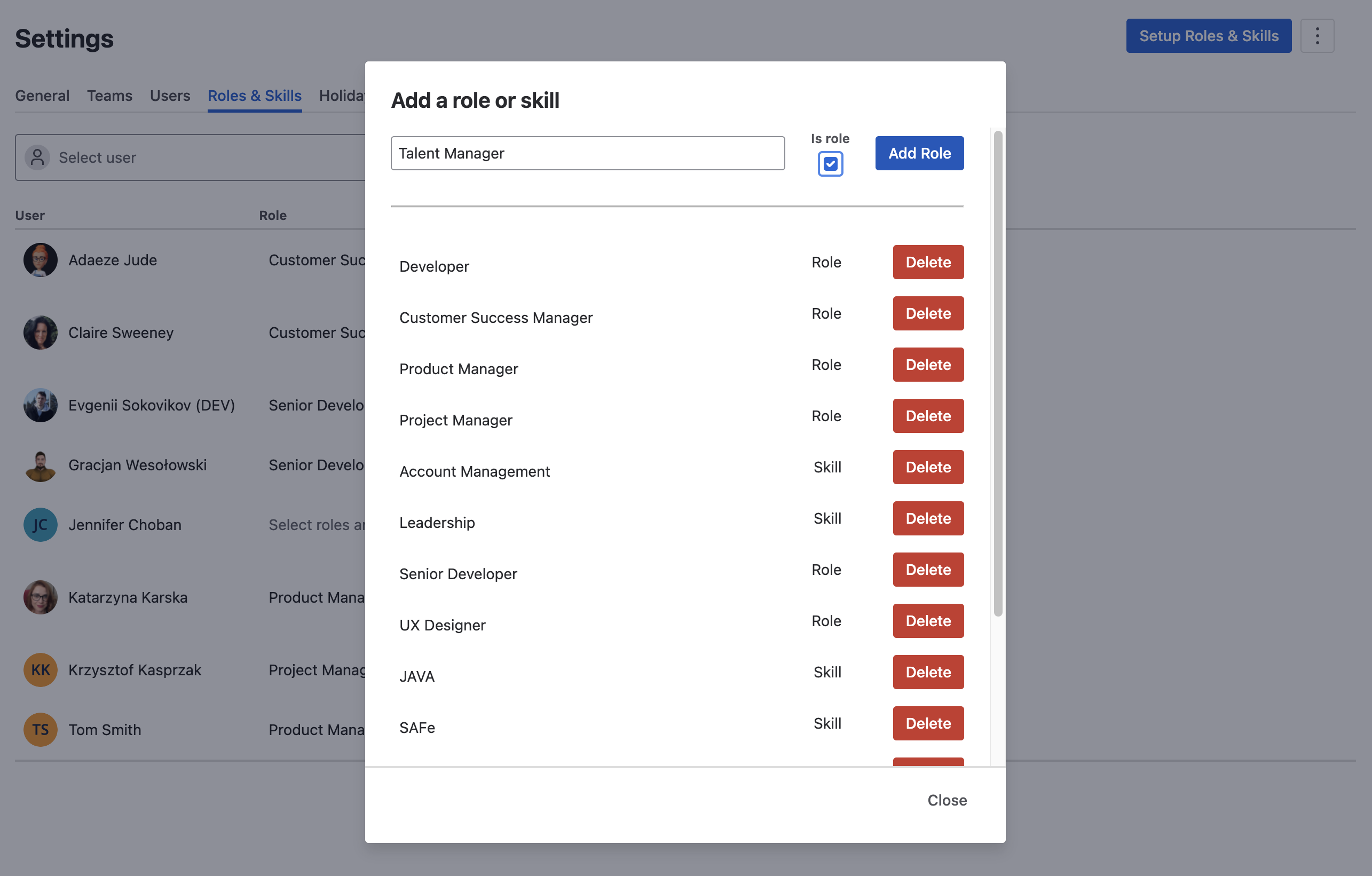
Type the name of the new Role in the text box and check the Is role check box.
-
Click Add Role.
Create a Skill
To create a new Skill:
-
Navigate to Apps > Portfolio and select Settings in the left nav bar.
-
Select the Roles & Skills tab.
-
Click the Setup Roles & Skills button to open the list.
-
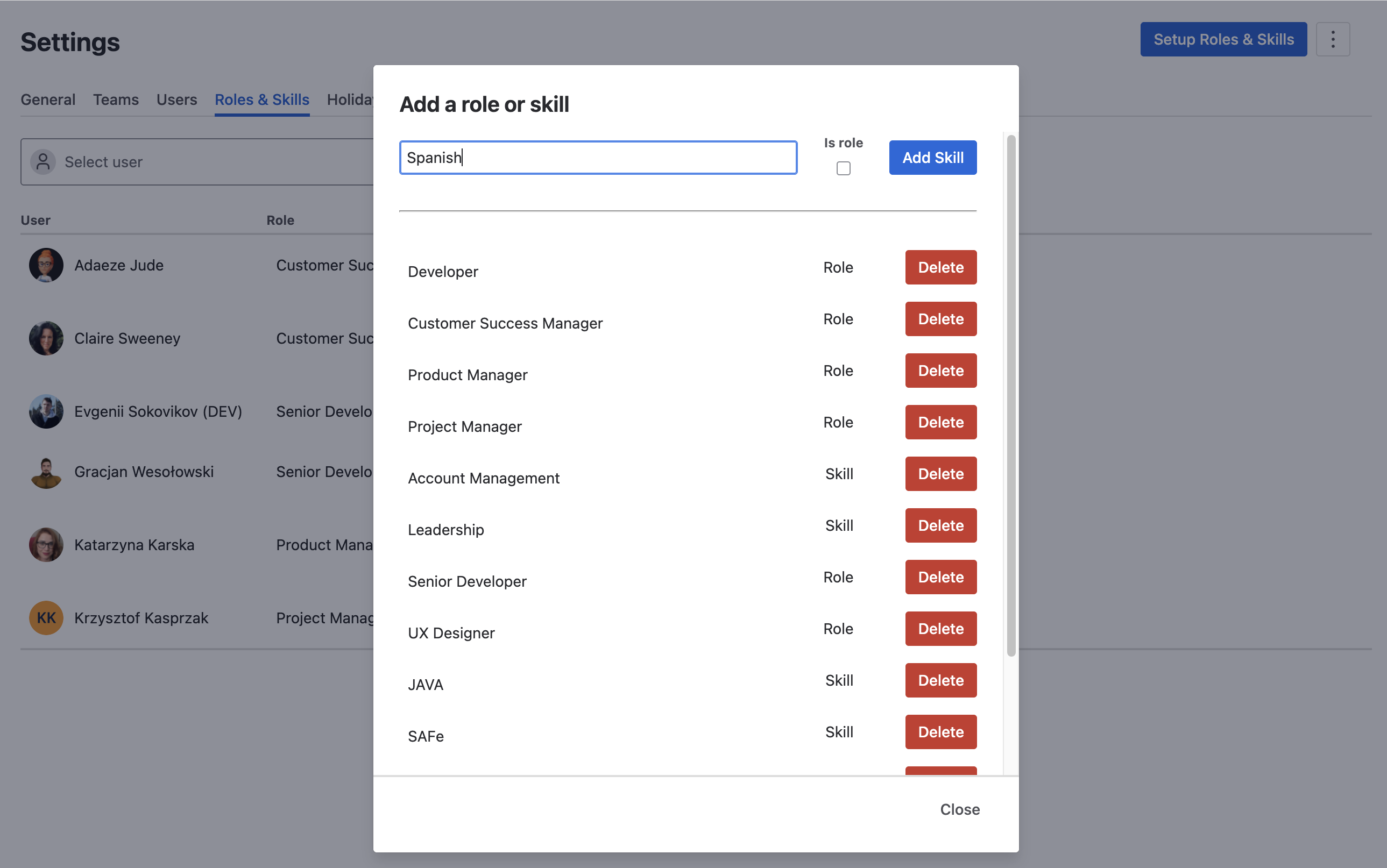
Type the name of the new Skill.
-
Click Add Skill.
Delete a Role and/or Skill
To delete a Role or Skill:
-
Navigate to Apps > Portfolio and select Settings in the left nav bar.
-
Select the Roles & Skills tab.
-
Click the Setup Roles & Skills button to open the list.
-
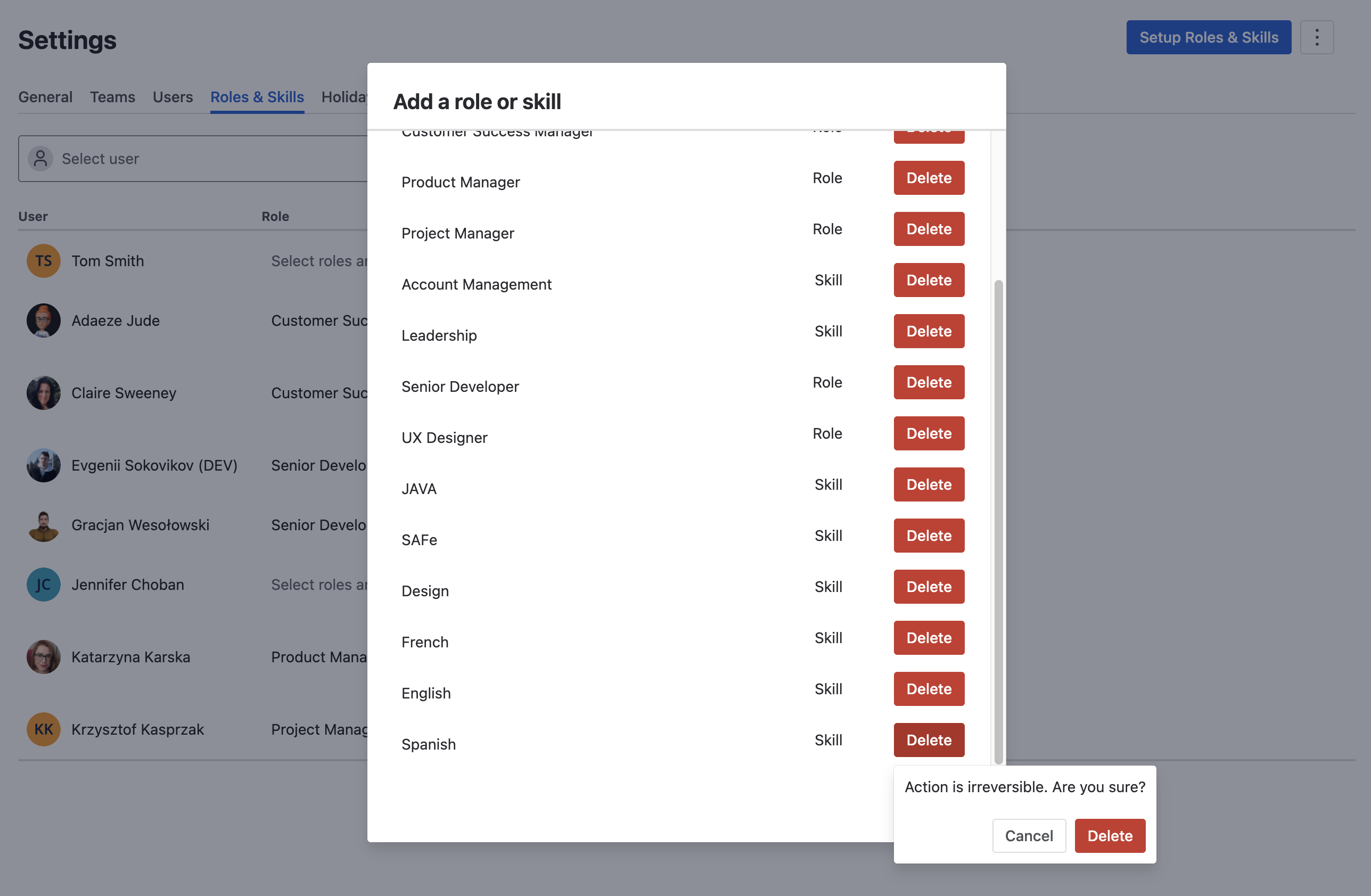
Click Delete next to the appropriate Role or Skill.
-
Click Delete again to confirm.
Associate a User or Jira Group with a Role and/or Skill
To associate a user with a Role or Skill:
-
Navigate to Apps > Portfolio and select Settings in the left nav bar.
-
Select the Roles & Skills tab.
-
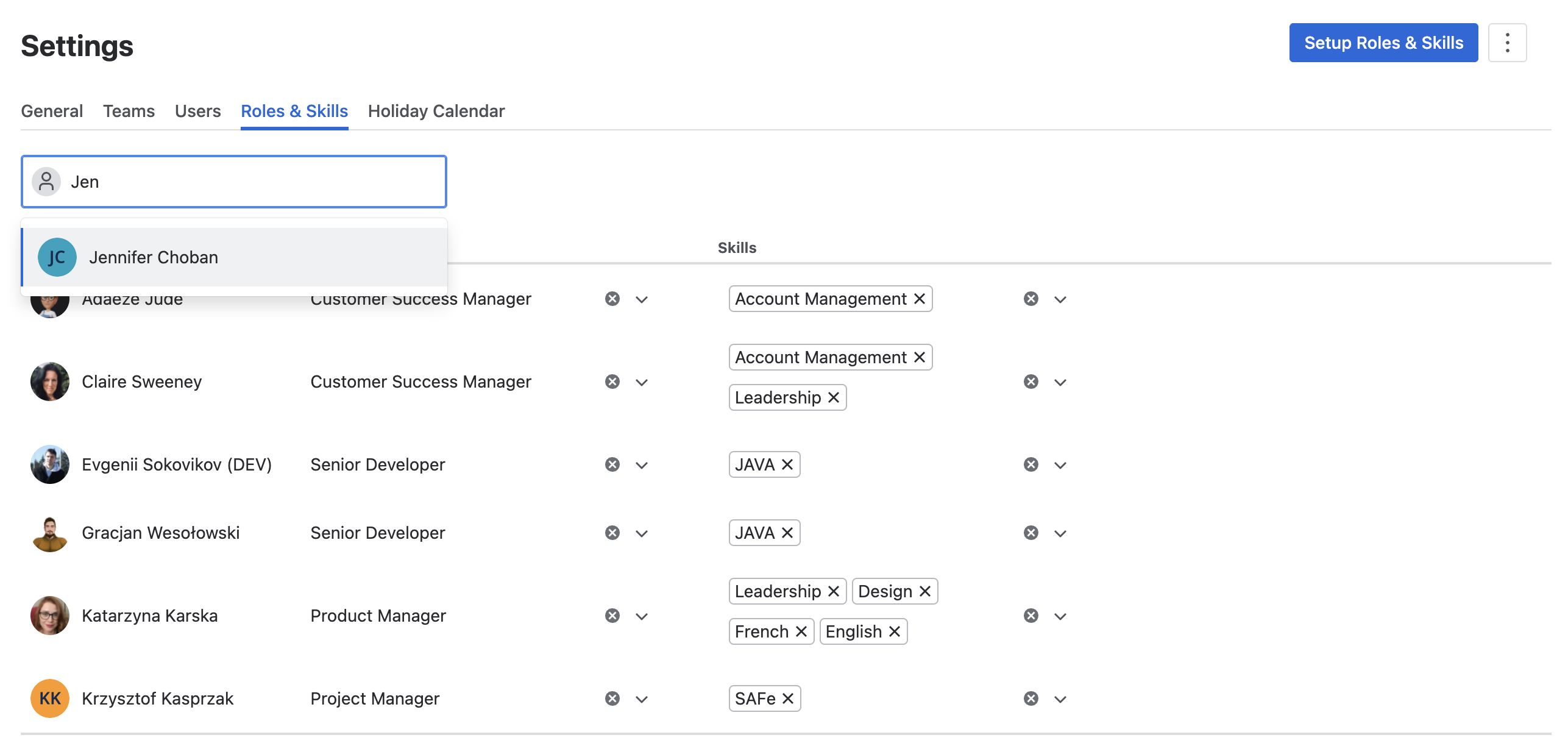
Begin typing in the Add group or user box and click on the appropriate user or Jira group.
-
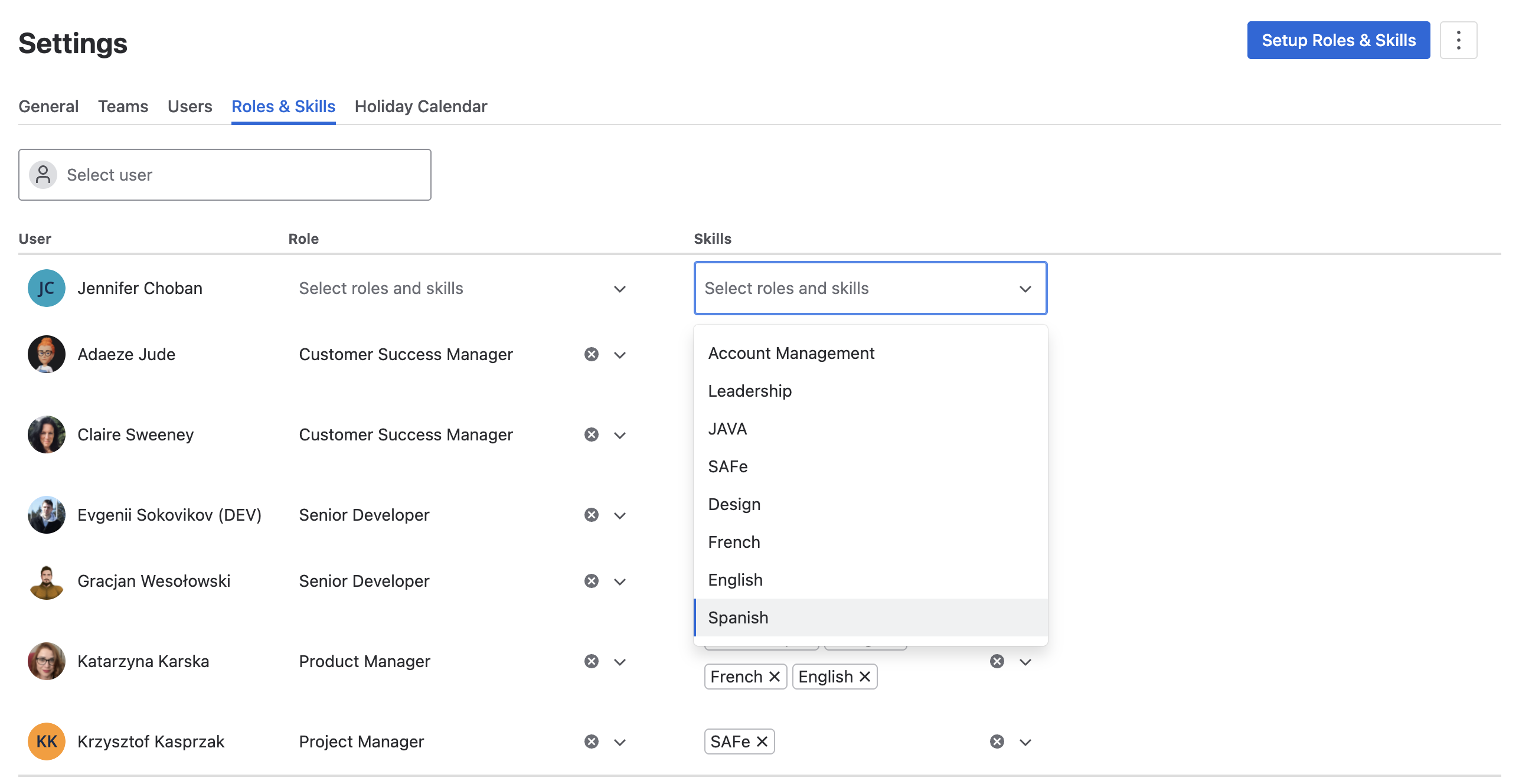
Use the dropdown boxes to select the appropriate Role(s) and Skill(s) for the user or group.
Edit a User’s Roles and/or Skills
To edit a user’s or Jira group Roles or Skills
-
Navigate to Apps > Portfolio and select Settings in the left nav bar.
-
Select the Roles & Skills tab.
-
Click into the dropdown box showing the user’s Roles or Skills.
-
Select new Roles/Skills, or click on the X on the label to remove a Role or Skill.