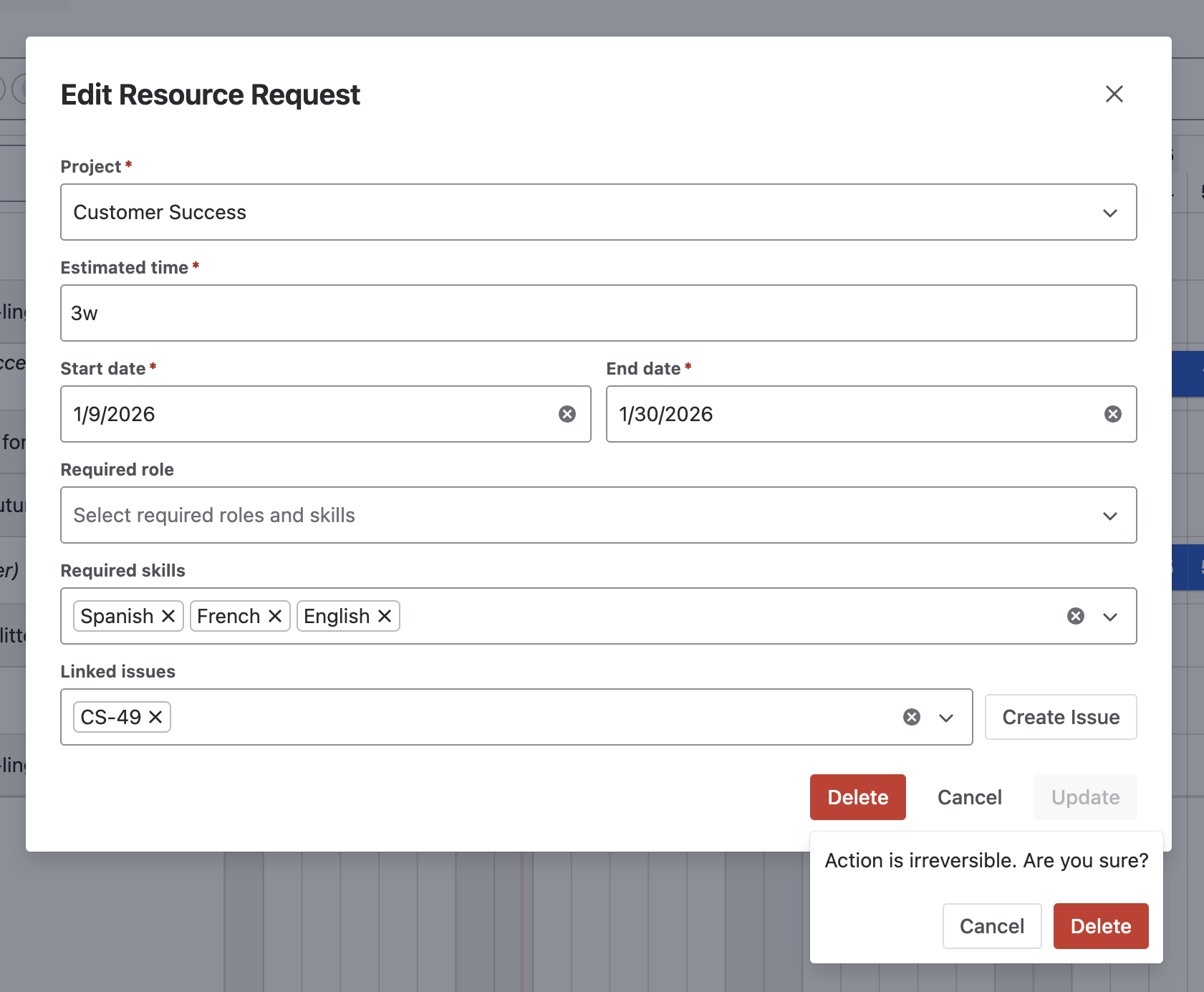
The advanced edition of Portfolio allows you to create resource requests to plan for future demand, ensuring that team members with the appropriate roles and skills are available when needed.
Create a Resource Request
To create a Resource Request:
-
Navigate to Apps > Portfolio..
-
Select Capacity Planners from the
nav bar.
-
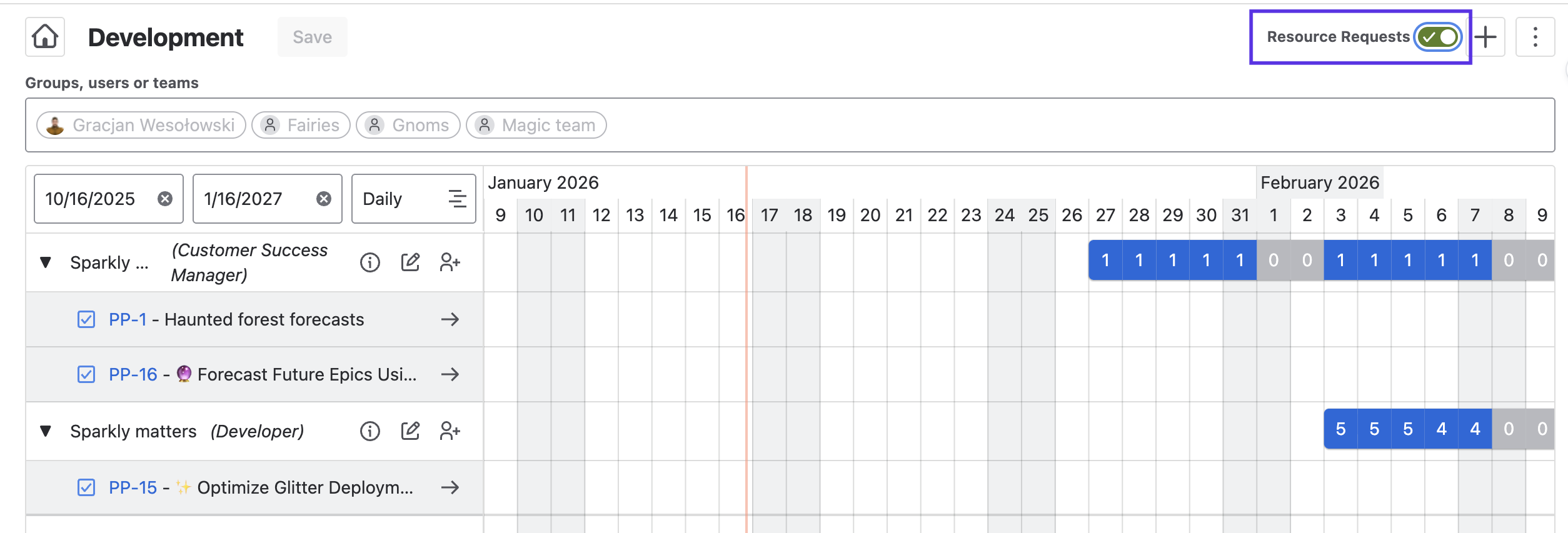
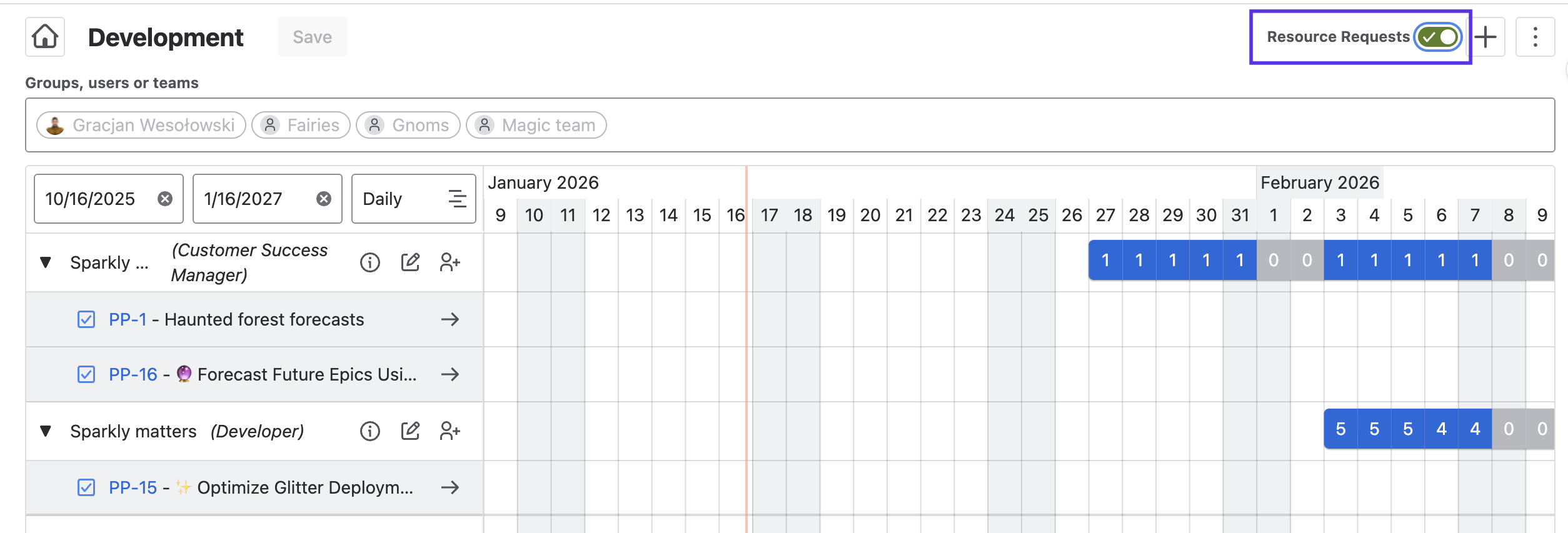
Enable the Resource Request toggle.
-
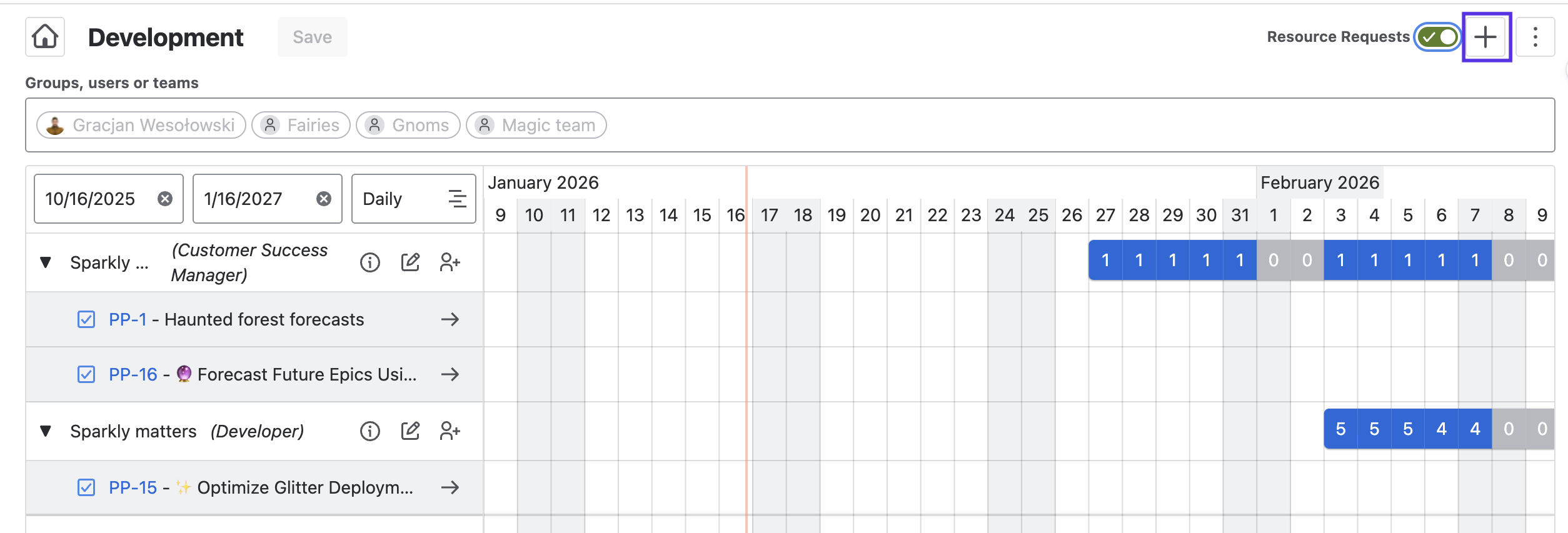
Click on the + button.
-
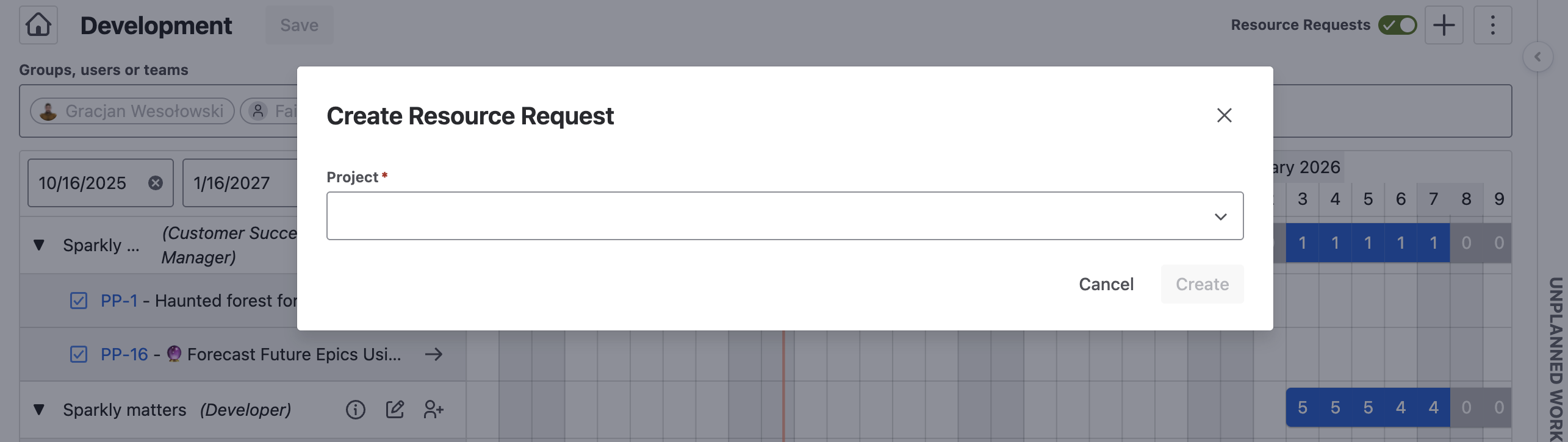
Select the appropriate project in the dropdown.
-
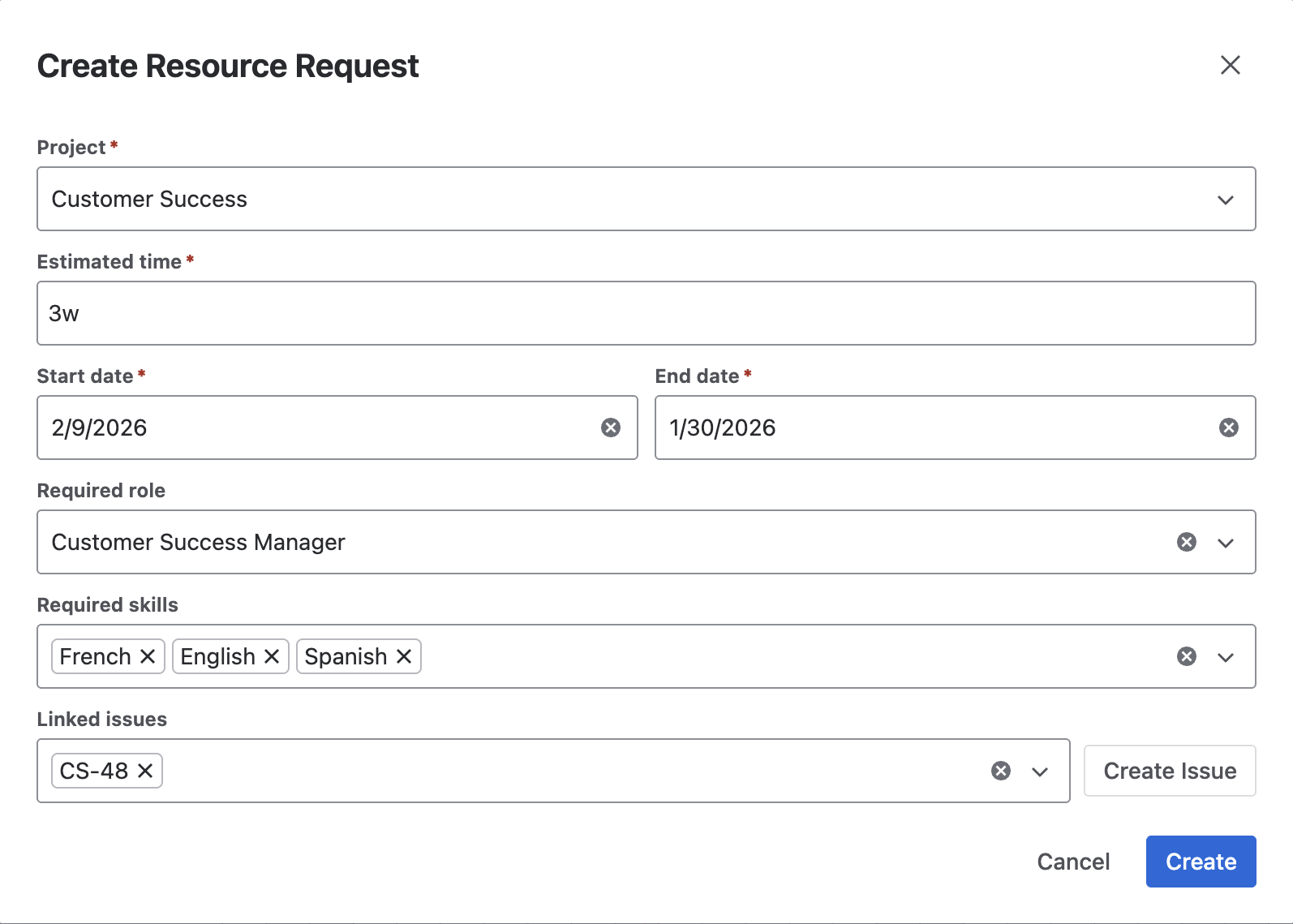
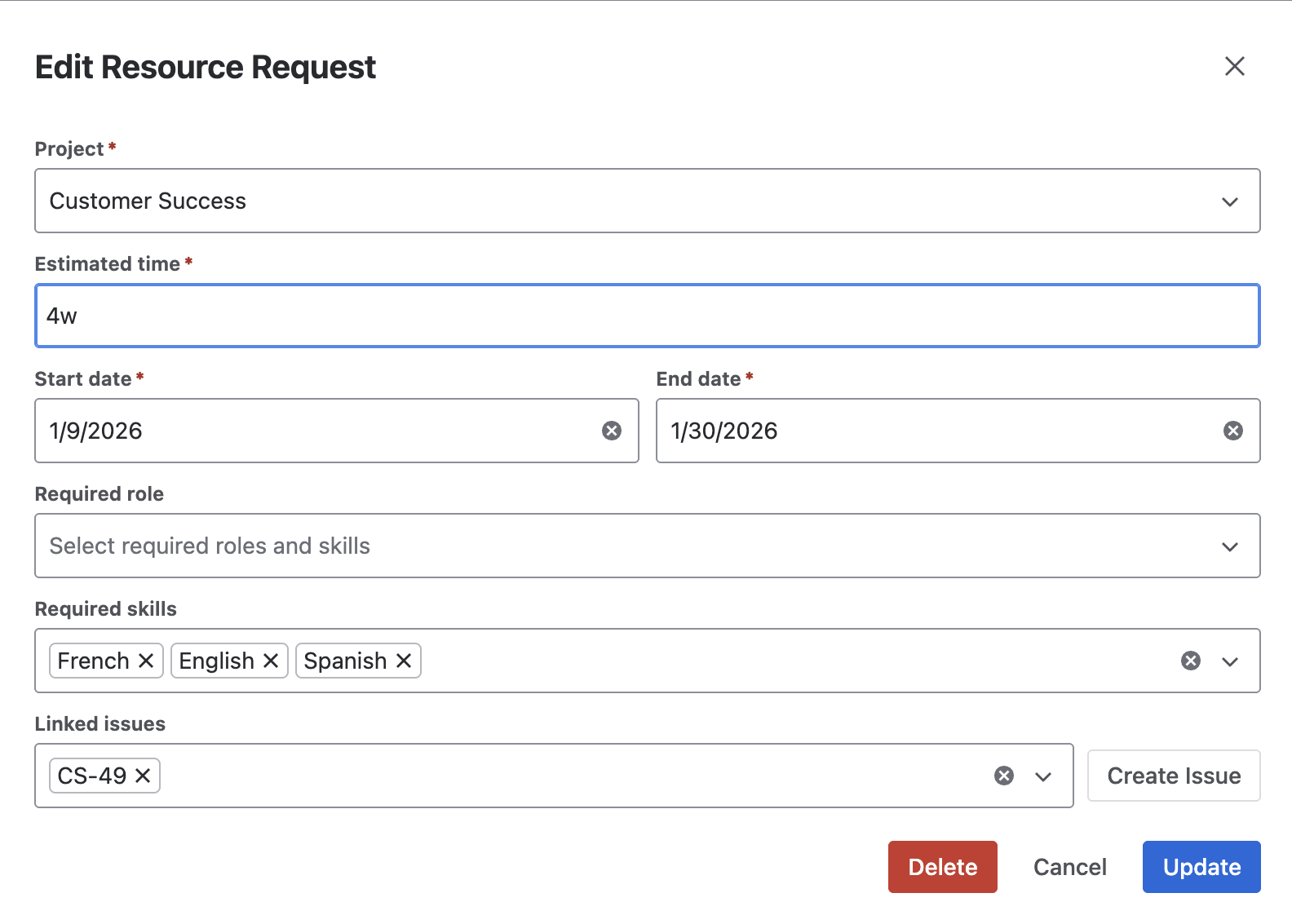
Complete the fields in the dialog:
-
Estimated Time – Enter the estimated duration
-
Start date – Enter the start date.
-
End date – – Enter the end date.
-
Required role – Optionally, you can select a required role from the roles defined in the settings.
-
Required skills – You also have the option to select required skills from the skills defined in the settings.
-
Linked issues – You can link work items to the request, or create new, linked work items by using the Create Issue button.
-
-
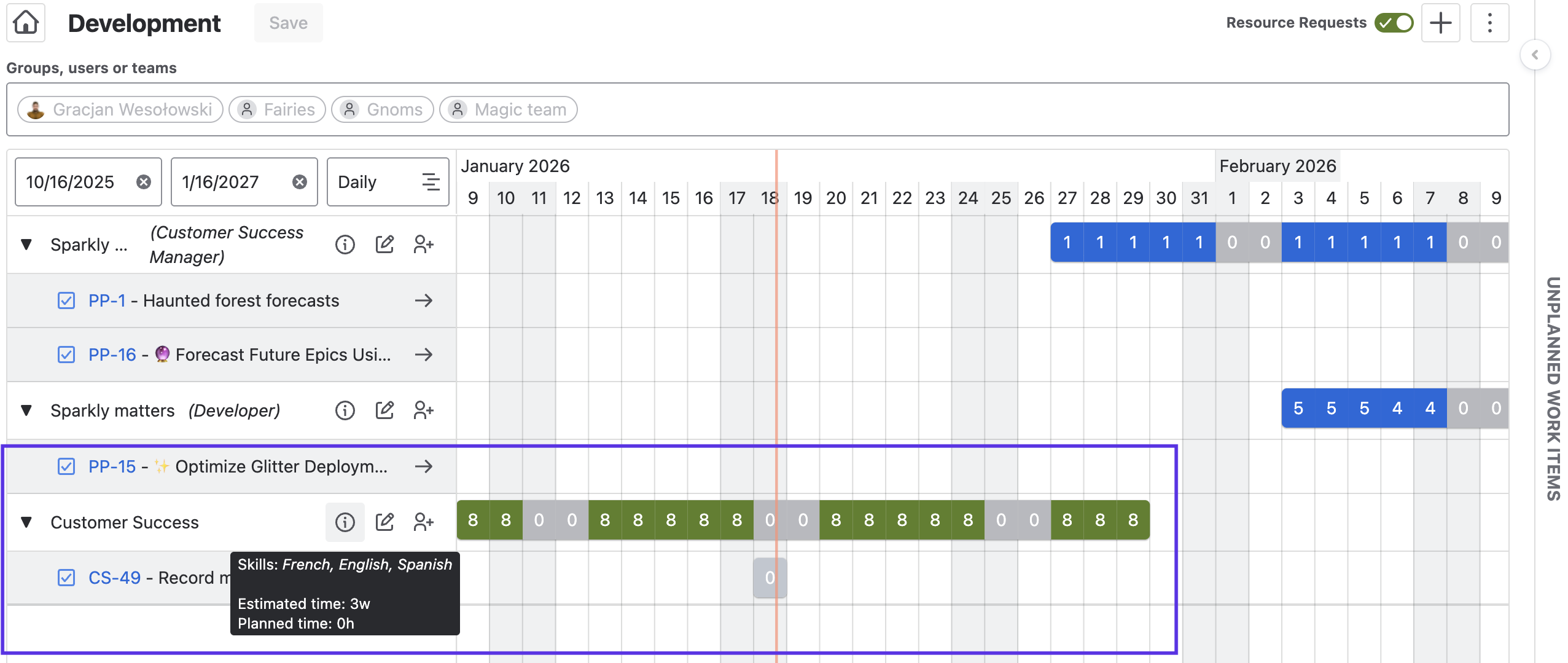
Click Create. The resource request, with the associated work item(s), will be shown on the timeline. Hover over the
icon to see the details of the request. Note that no users are assigned to the request until it has been confirmed.
Edit a Resource Request
To create a Resource Request:
-
Navigate to Apps > Portfolio..
-
Select Capacity Planners from the left nav bar.
-
Enable the Resource Request toggle.
-
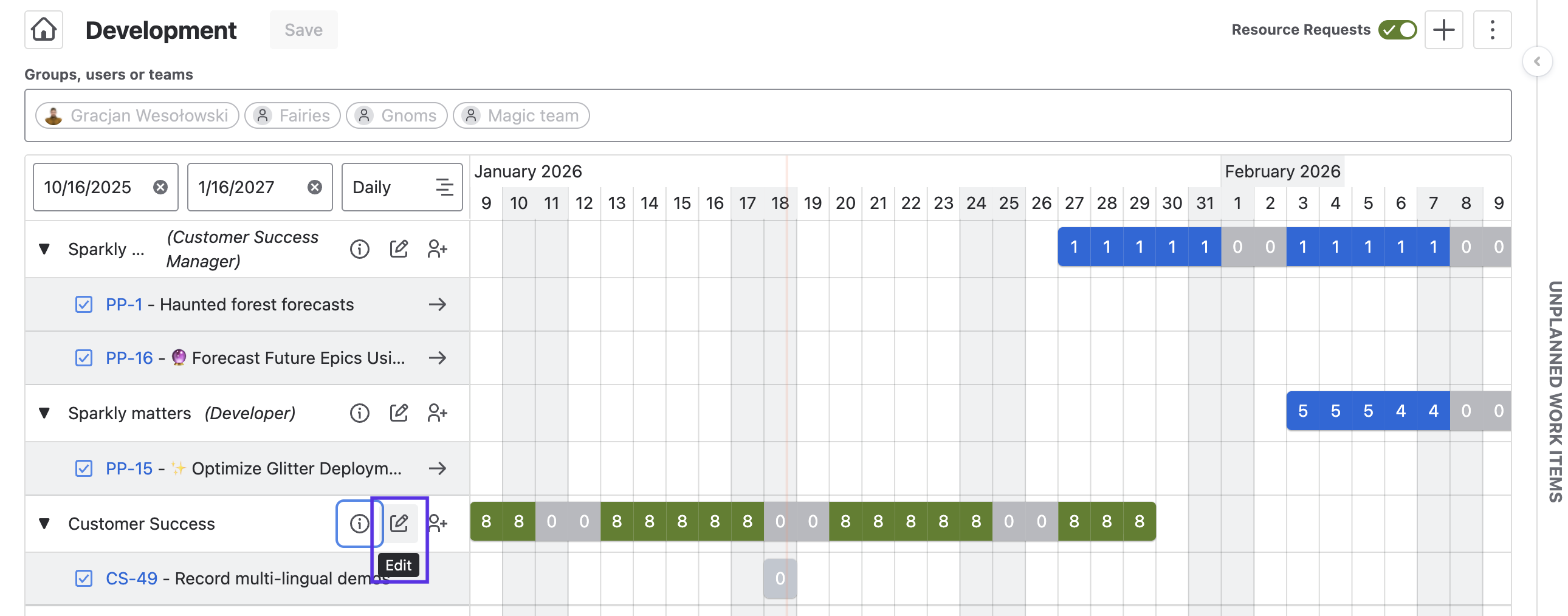
Click on the Pencil icon for the appropriate request.
-
Make the appropriate changes to the request details.
-
Click Update.
Confirm a Resource Request
To confirm a Resource Request and assign a user:
-
Navigate to Apps > Portfolio..
-
Select Capacity Planners from the left nav bar.
-
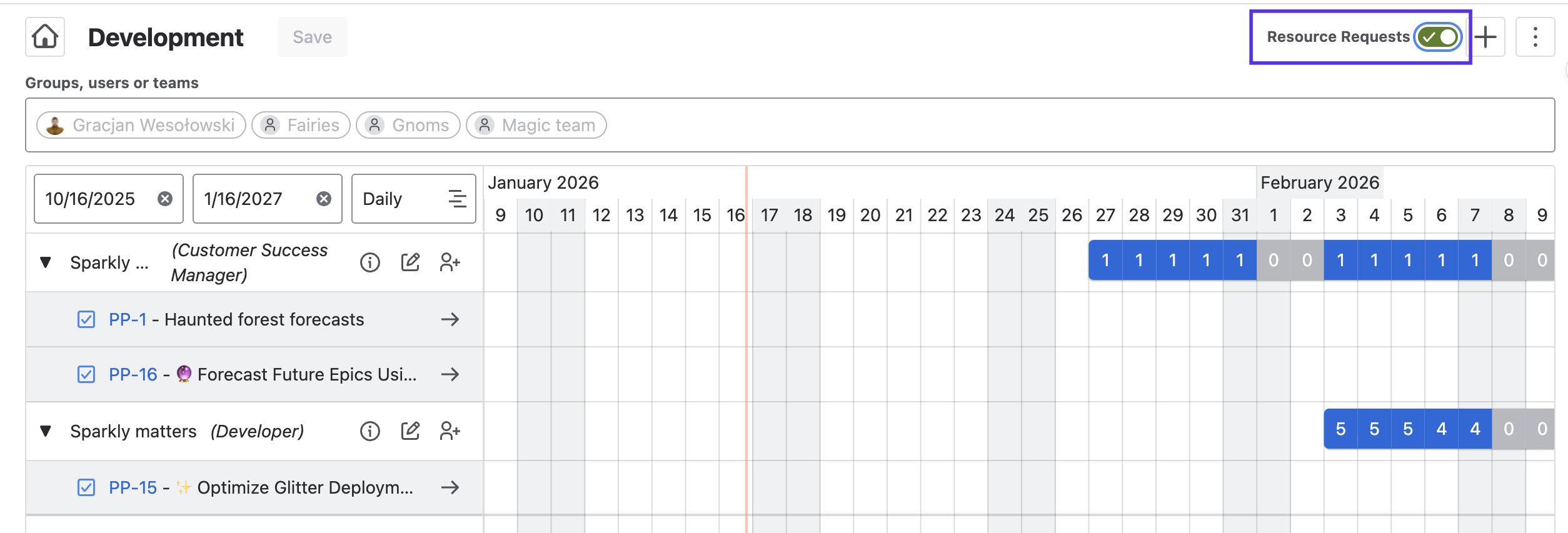
Enable the Resource Request toggle.
-
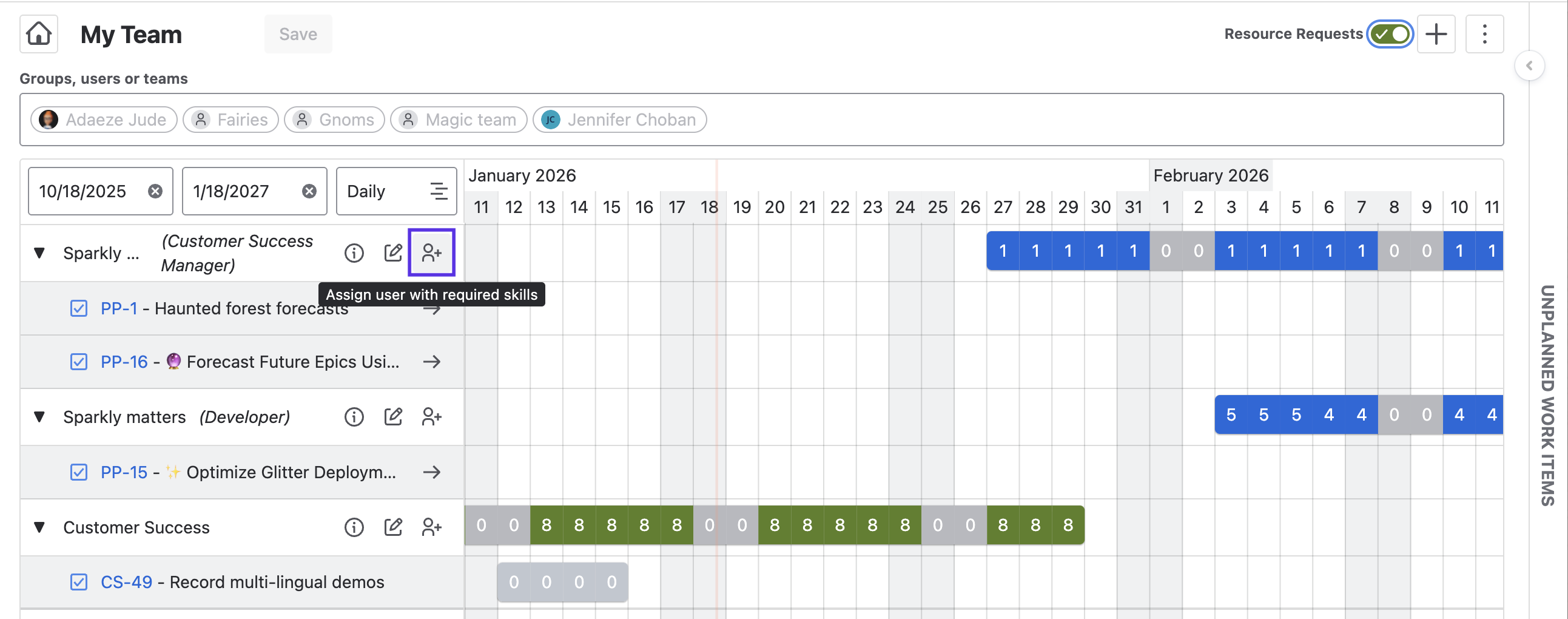
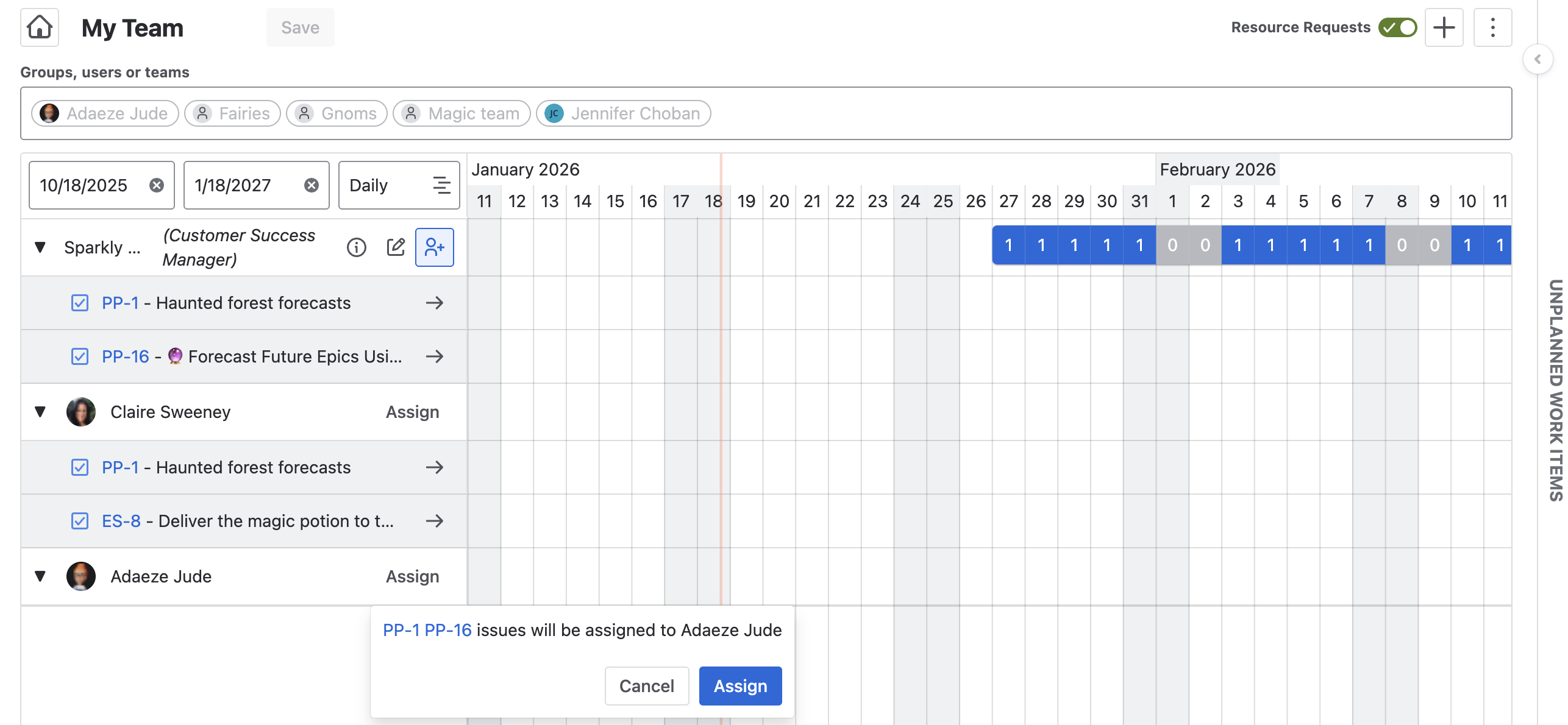
Click on the Person icon to confirm the request and assign a user to the work.
-
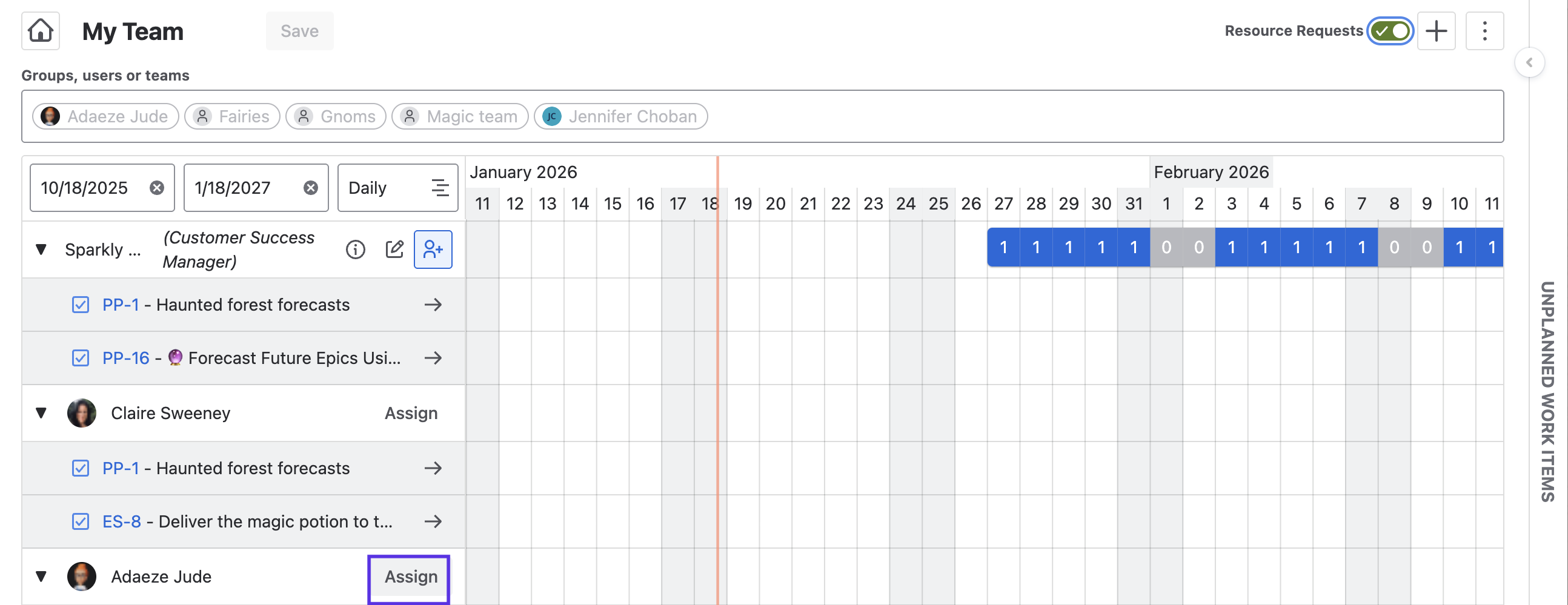
You’ll see available users who have the required roles and/or skills. Click Assign to assign the work item.
-
Click Assign again to confirm. The work item will be assigned to the user.
Delete a Resource Request
To create a Resource Request:
-
Navigate to Apps > Portfolio..
-
Select Capacity Planners from the left nav bar.
-
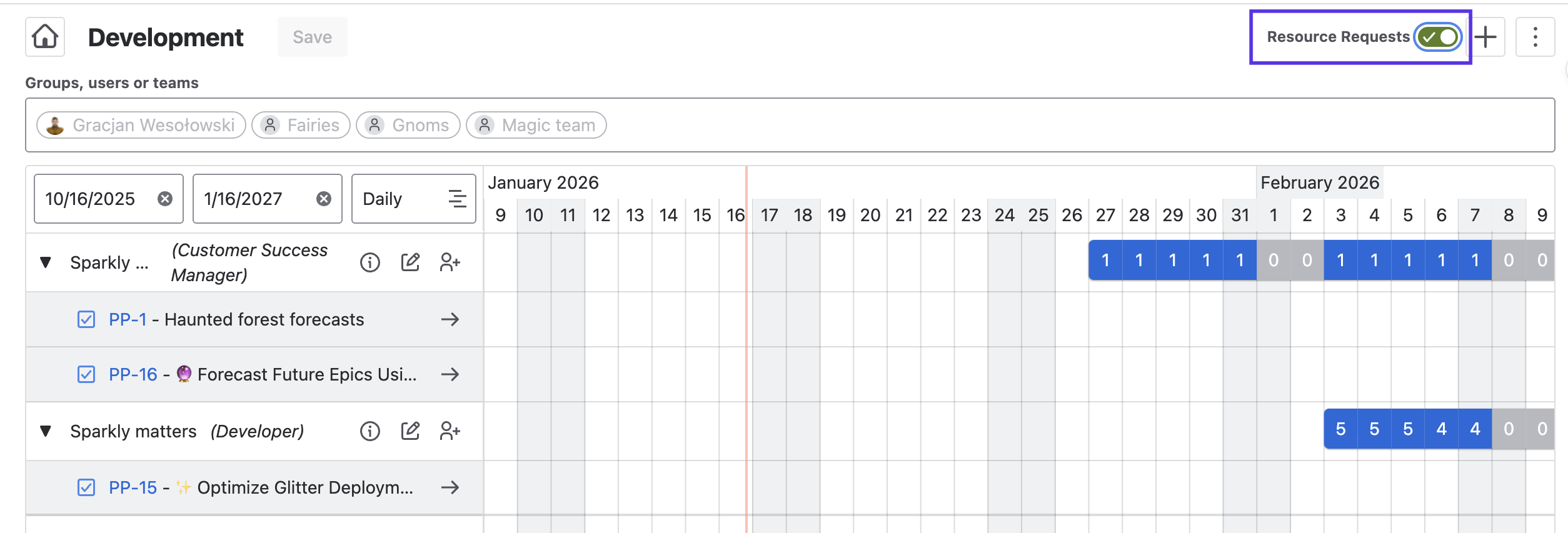
Enable the Resource Request toggle.
-
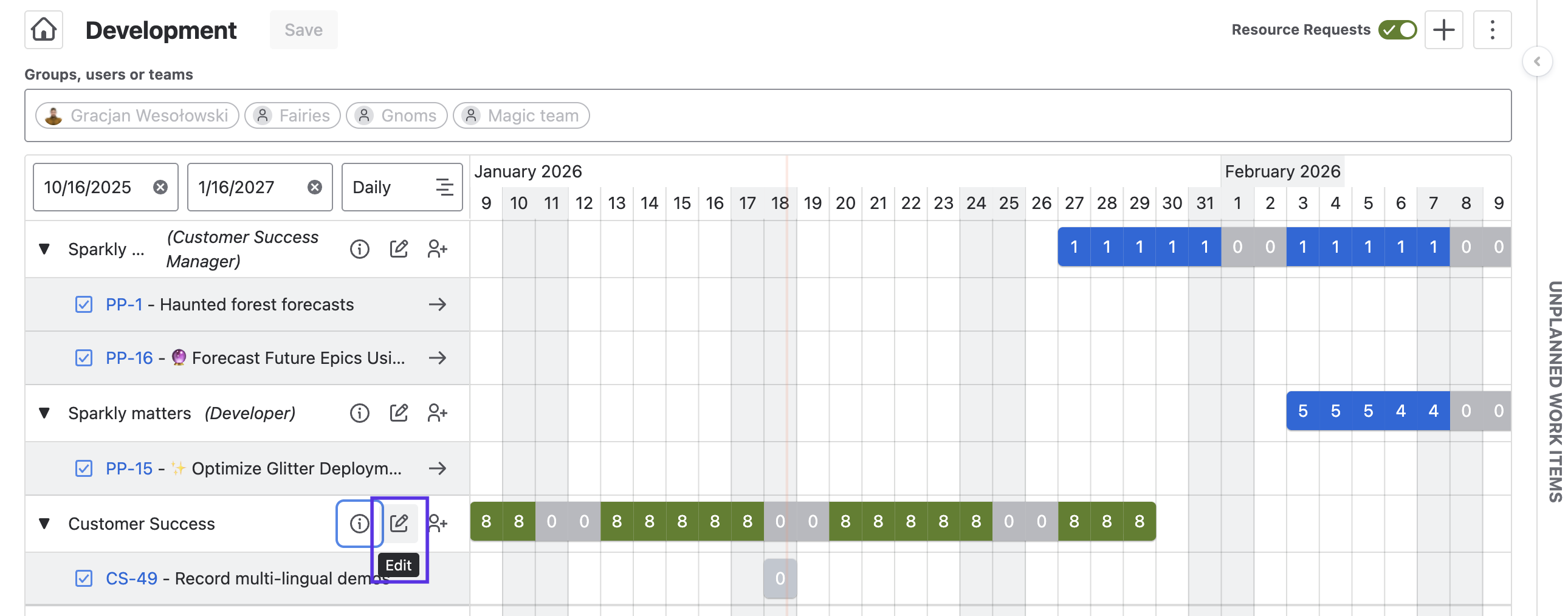
Click on the Pencil icon for the appropriate request.
-
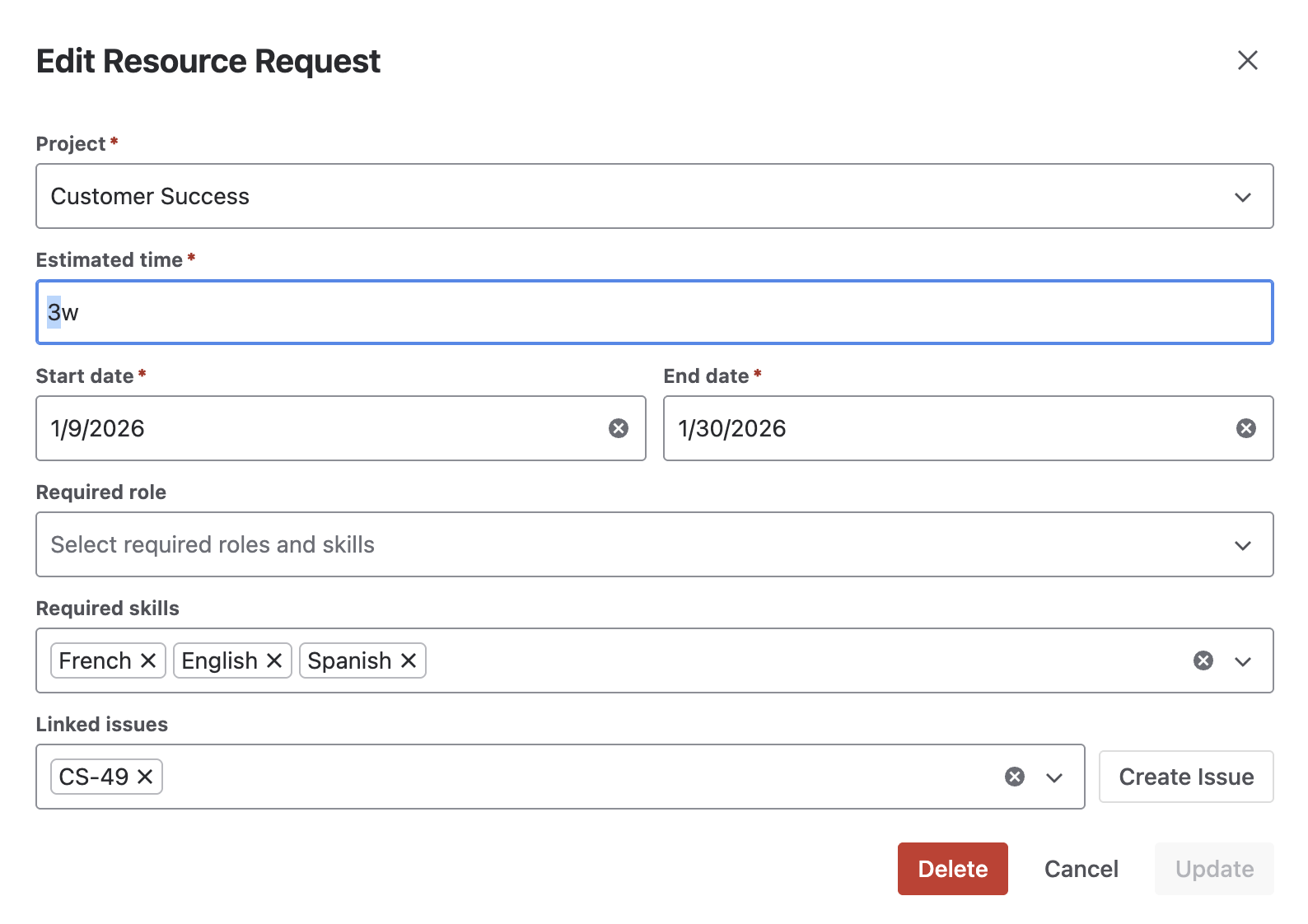
Click Delete.
-
Click Delete again to confirm you want to delete the request.