
Enabling Checklists on Spaces
Checklists for Jira can run on any or all spaces in your Jira instance. To globally enable Checklists, log in as a Jira Administrator and go to Jira Settings > Apps > Checklists for Jira > Enabled Projects. Use the toggles on to enable Checklists for Jira on the desired space(s). You can use the search bar to find a specific space by searching for the name or space key. The Actions menu lets you bulk enable/disable Checklists for Jira on all space s.
When Checklists for Jira is disabled on a space, the Checklists UI is not shown, users cannot create Local Checklists and Global Checklists are not shown even if the space is included in the Global Checklist Context.
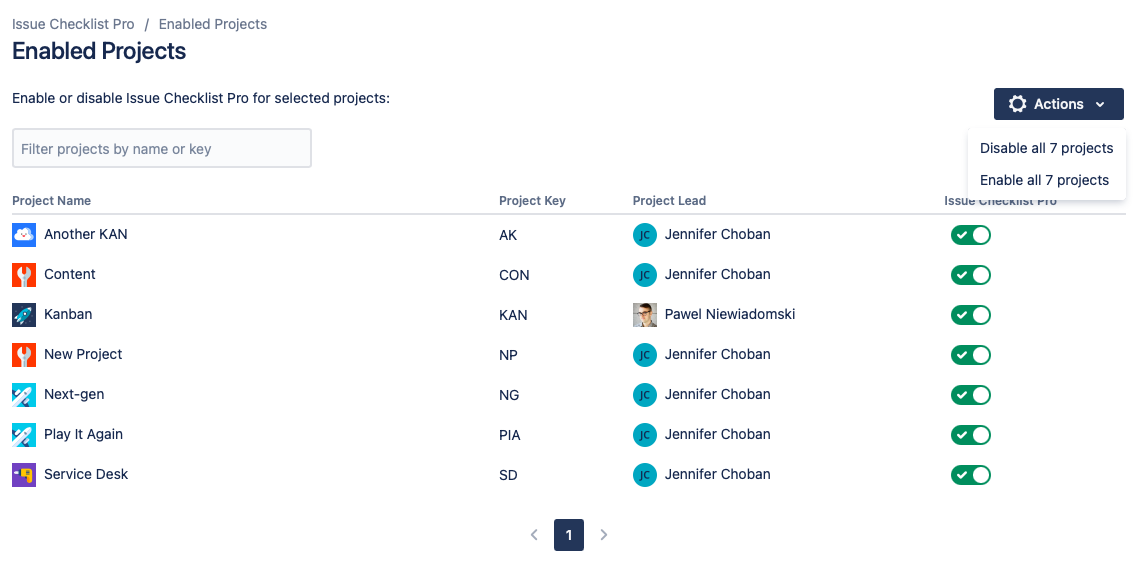
There is currently no setting to disable Checklists on newly created spaces by default. However, if your security protocols require this, you can use an automation rule to automatically disable checklists when space s are created.
Adding Checklist Custom Fields
To get the most out of the Checklists app, we recommend that you add the Checklists for Jira custom fields to your Default field configuration, or whichever field configuration(s) are used by the spaces where you’ll be using checklists.
-
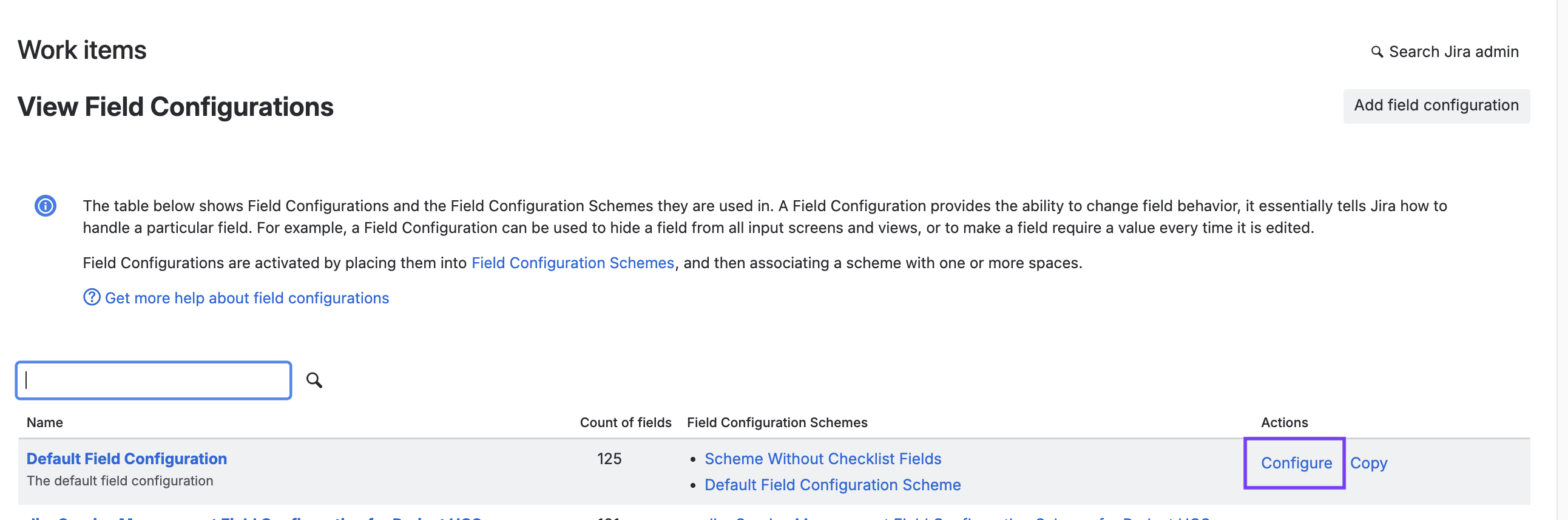
Navigate to Jira settings > Work items > Field Configuration.
-
Go to the the appropriate field configuration and click on Configure.
-
Use the Add field button to add the following fields:
