
The Gantt chart view helps you plan and track portfolio work on a visual timeline. Use it to see how tasks are scheduled, understand dependencies between work items, and adjust date ranges so your team can stay aligned on upcoming priorities. Portfolio allows you to have multiple dependencies and also auto reschedule dependent tasks when the predessesor dates get updated.
View as a Gantt Chart ADVANCED EDITION
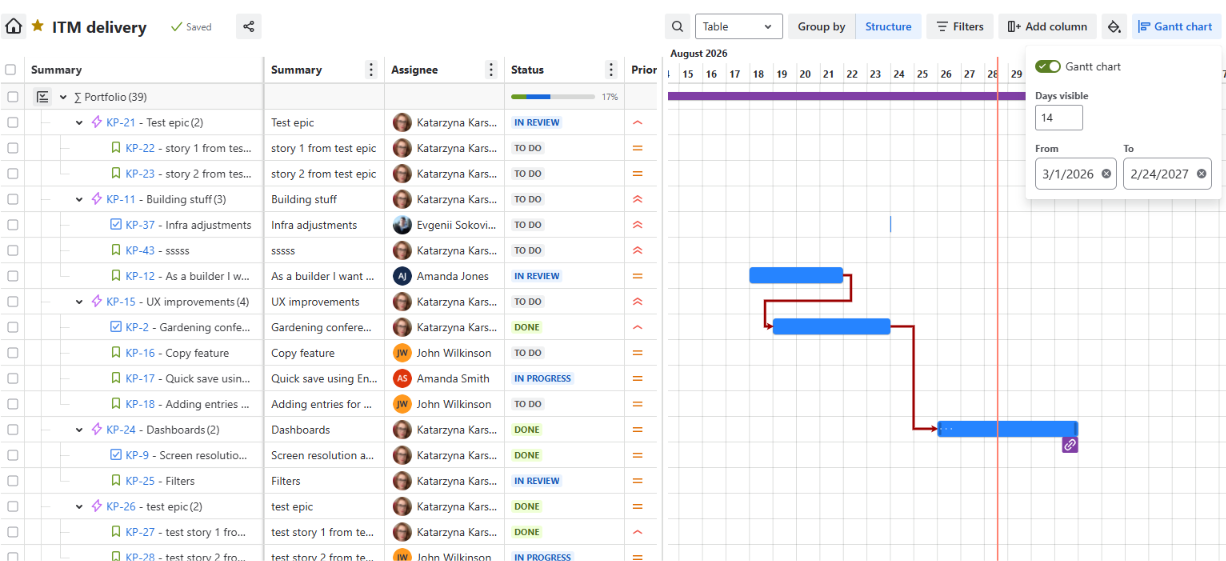
The Advanced edition of Portfolio lets you view your portfolio as a dynamic Gantt chart that shows a timeline with dependencies for your teams' upcoming work.
To view the Gantt chart:
-
Open your portfolio and select Table view.
-
Click on the Gantt chart button in the upper right corner.
-
Enable the Gantt chart toggle.
-
Enter the number of visible days and date range parameters. Once you select the number of visible days, you can still scroll through the timeline.
Add a Dependency to the Gantt Chart ADVANCED EDITION
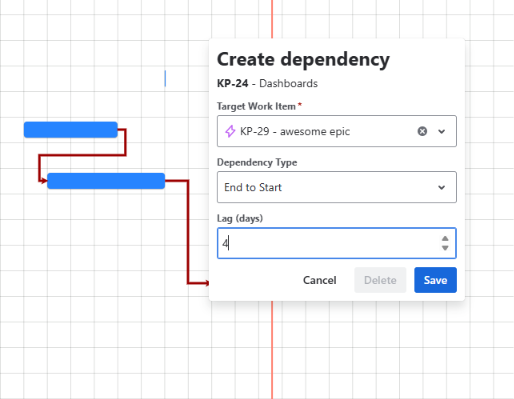
Make dependencies easily visible for better planning. The Advanced edition of Portfolio lets you add dependencies to the Gantt chart:
-
Enable the Gantt chart view as described above.
-
Click on the purple icon at the end of a task bar or drag and drop a line between two tasks.
-
A dialog box will open. Complete the fields to create the Dependency:
-
Select the Target Work Item
-
Select the Dependency Type (End to Start, Start to End, End to End, Start to Start, Soft)
-
Enter any Lag time (in days)
-
Click Save.
-
Edit a Dependency on the Gantt Chart ADVANCED EDITION
To edit an existing dependency:
-
Enable the Gantt chart view.
-
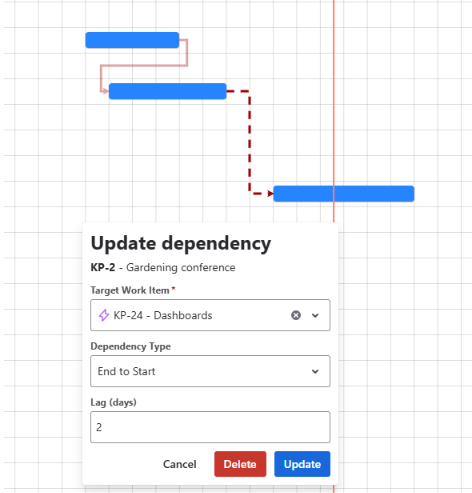
Click onto the green icon representing the dependency you want to edit.
-
The dialog box will open and the selected dependency will be highlighted. Update the appropriate fields and click Update.
Delete a Dependency from the Gantt Chart ADVANCED EDITION
To delete an existing dependency:
-
Enable the Gantt chart view.
-
Click onto the green icon representing the dependency you want to delete.
-
The dialog box will open. Click Delete.
-
Click Delete again to confirm the action.