
Checklists
Add a Checklist to a Work Item
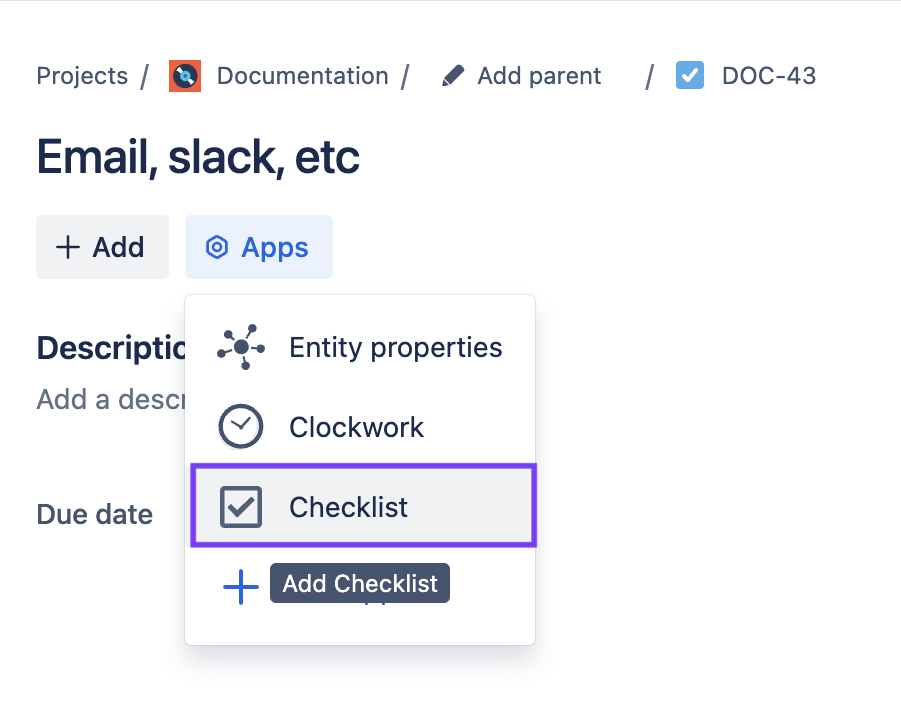
To add a checklist to a work item, click on the Gear icon and select Checklist from the list of Apps.
To ensure checklists are always visible, go to Jira Settings > Marketplace apps and select Global settings under the Checklists heading. Use the toggle to enable Show empty checklist panel in work items. |
|
|---|---|
Add an Item to the Checklist
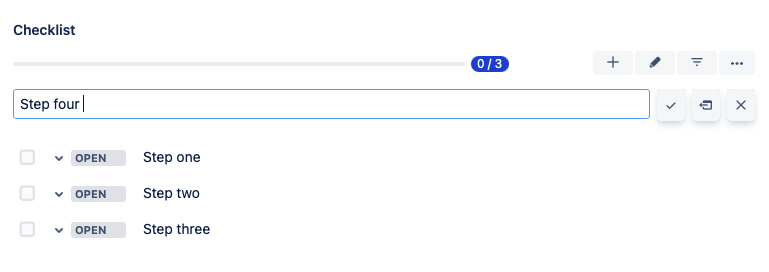
To add an item to the checklist, simply type the item in the text box at the top of the list. Hit enter or click on the checkmark when you’re done. |
|
Enable Statuses
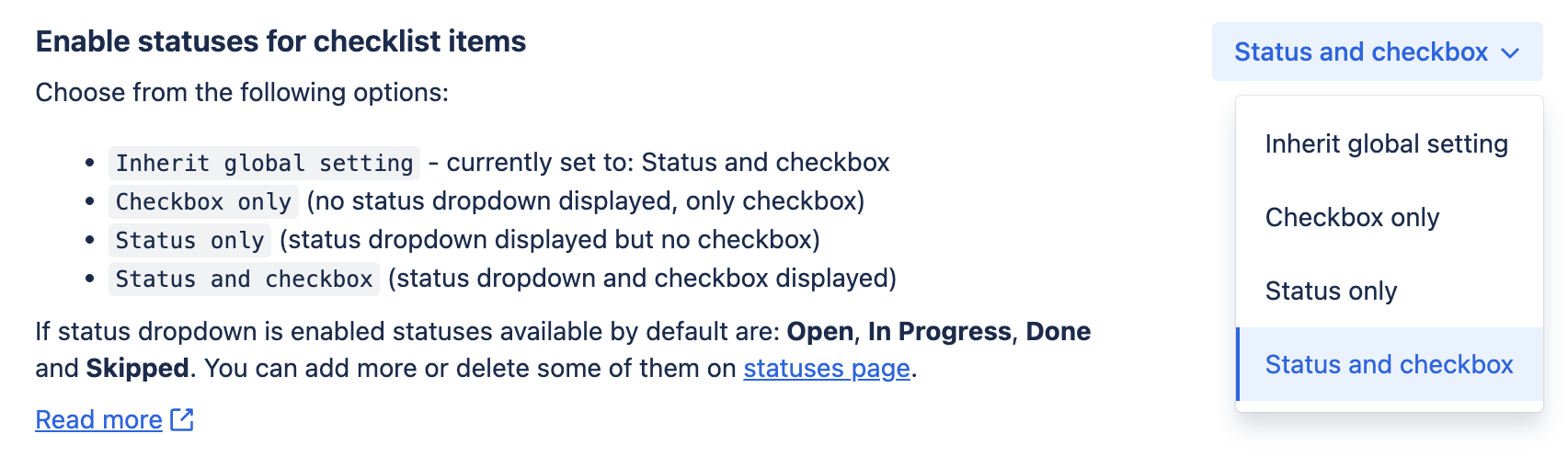
Checklists can use simple checkboxes, statuses or both. To enable statuses for checklists in a space:
|
|
Sync to Custom Fields
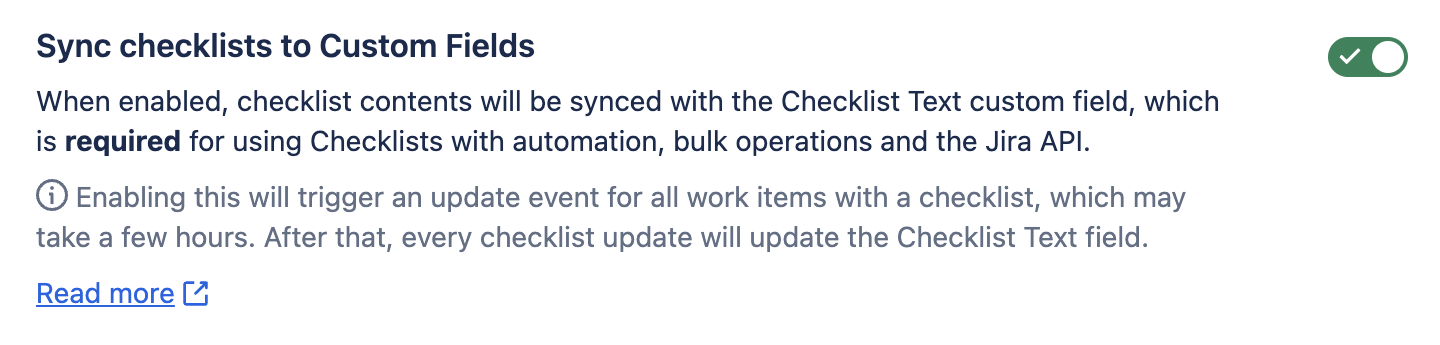
Checklist data can be automatically saved in the Checklist Text custom field. This makes the checklist usable with automation and other advanced uses. To save checklist data to the Jira custom field:
|
|
Checklist Items
Checklist Item Functions
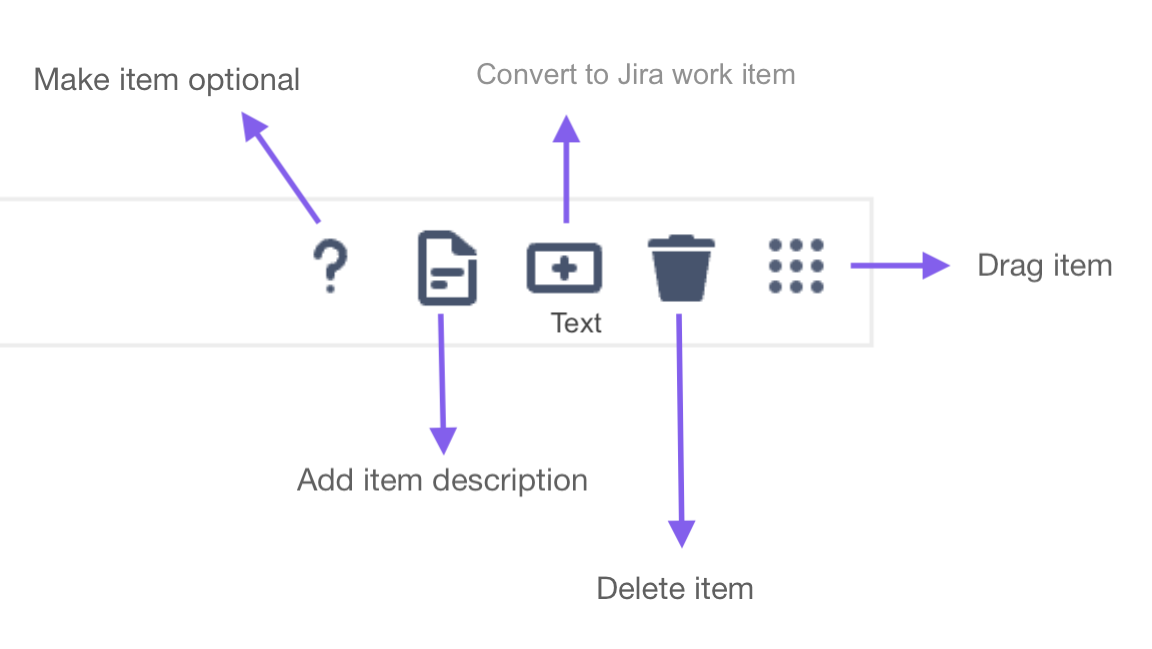
Hovering over a checklist item reveals a menu that allows you to:
|
|
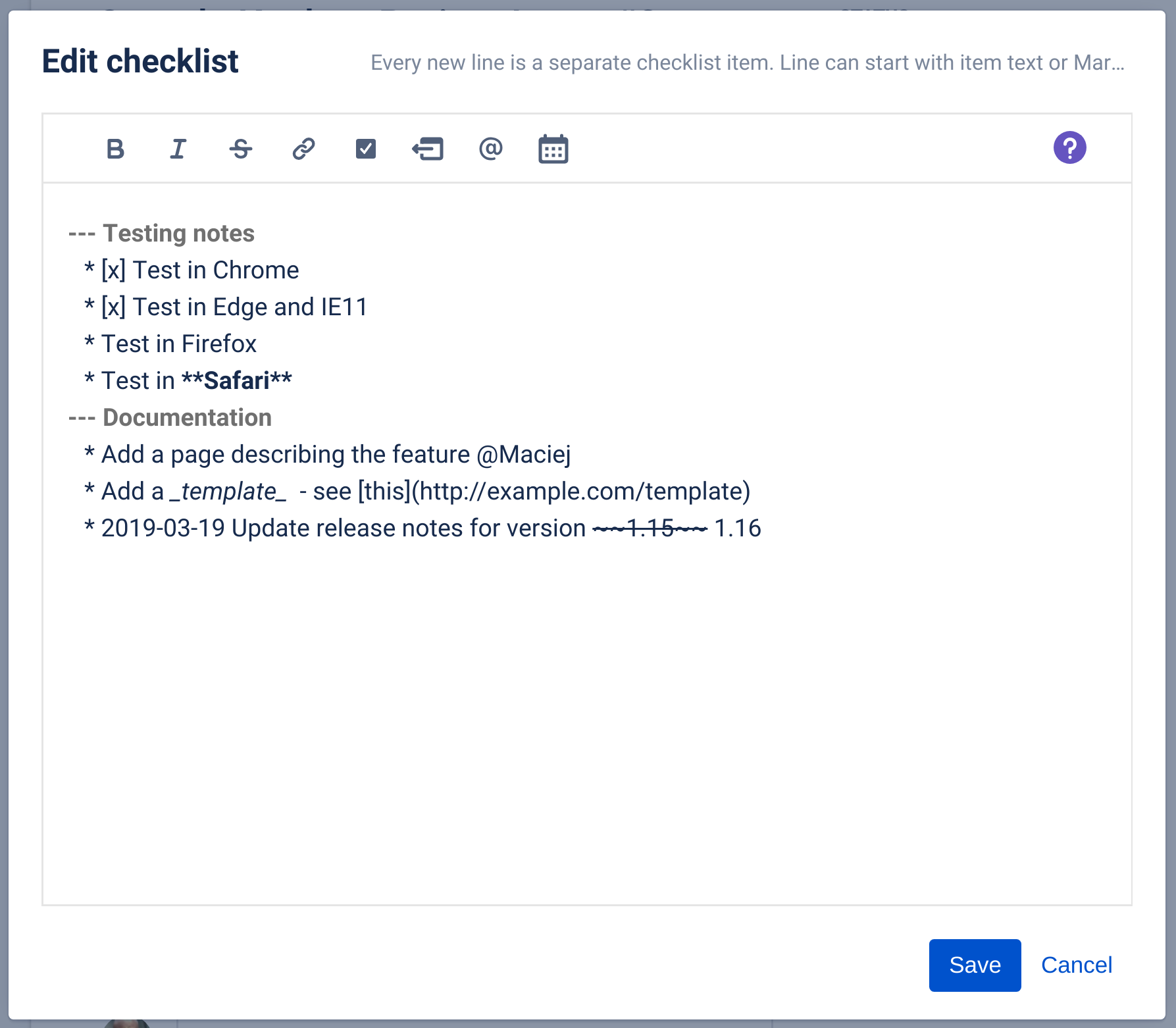
Format Checklist Items
Checklist items can include emojis, due dates, descriptions and rich text formatting. |
|
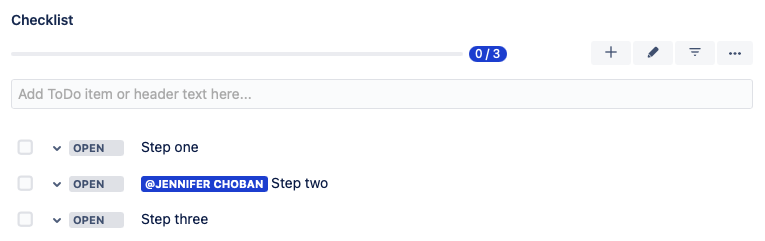
Assign a Checklist Item
Use @ mentions to assign a checklist item to a user. |
|
Quick Access Menus
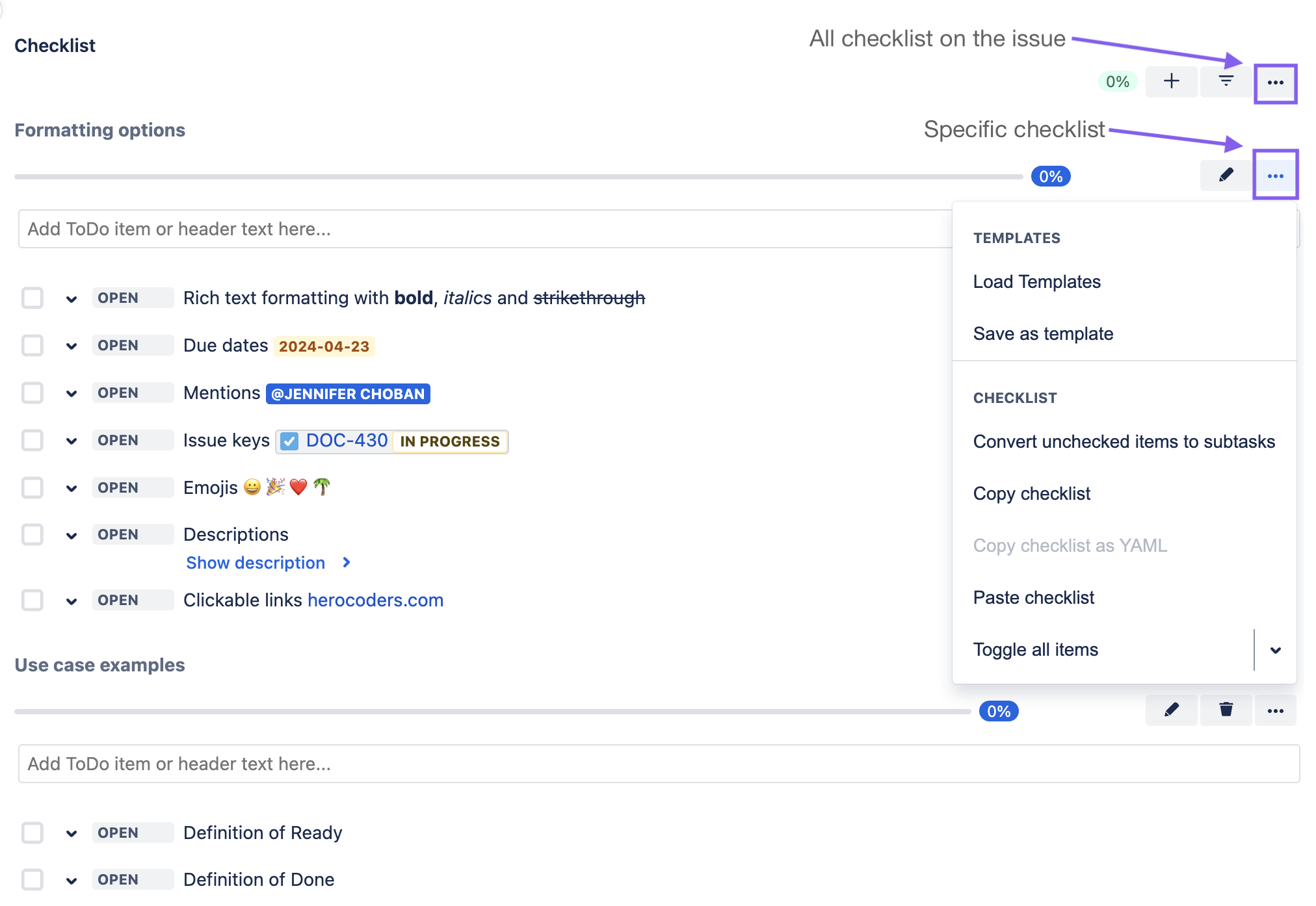
Quick Access Menu
Click on the … menu to the right of the Checklist title to quickly access checklist options. If you are using multiple checklists on a work item, the upper menu will impact all checklists, and the others will only impact the specific checklist it is associated with. |
|
Checklist Templates
Save a Checklist as a Template
|
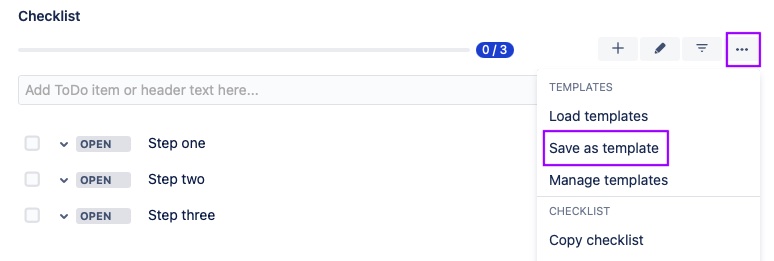
|
|---|---|
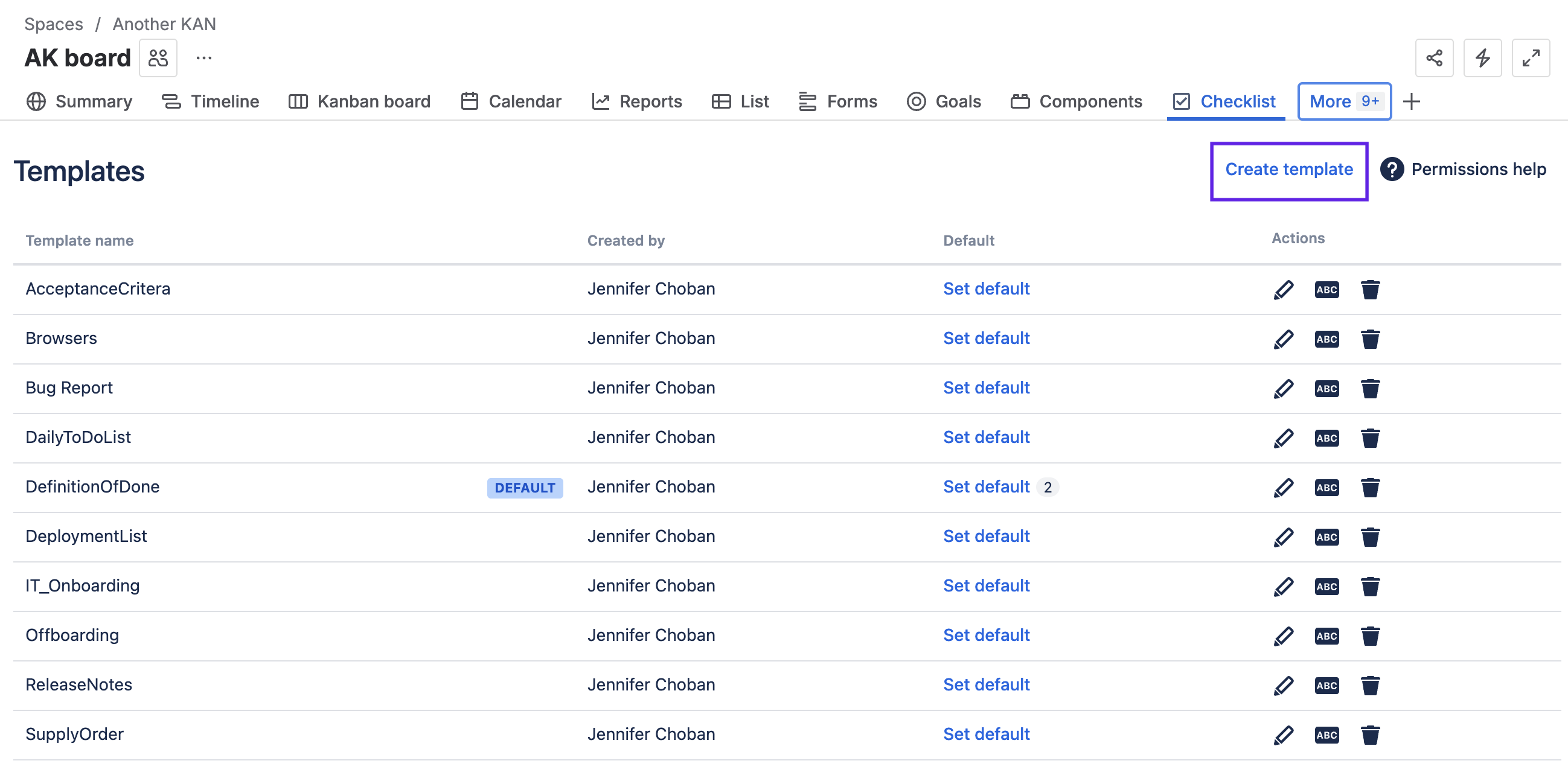
Create a Template
To create a checklist template:
*You can view, edit or delete any template form this page. |
|
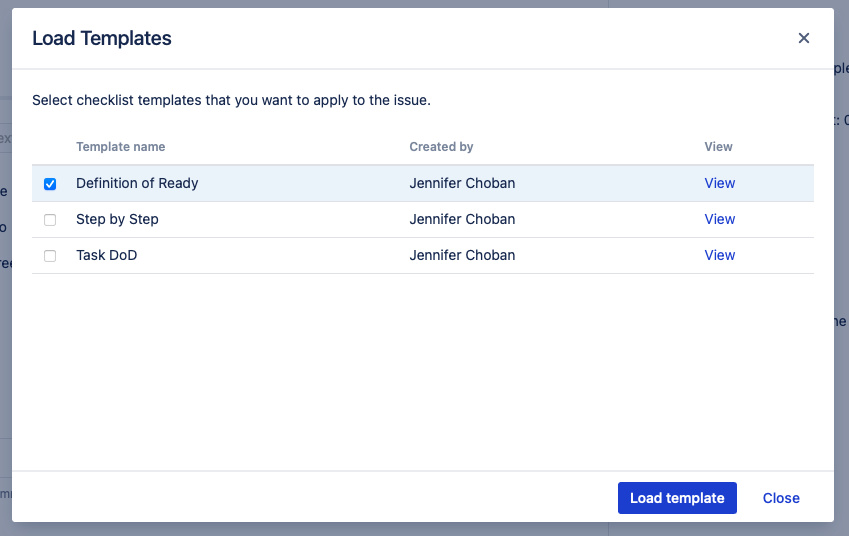
Add a Template to a Work Item
|
|
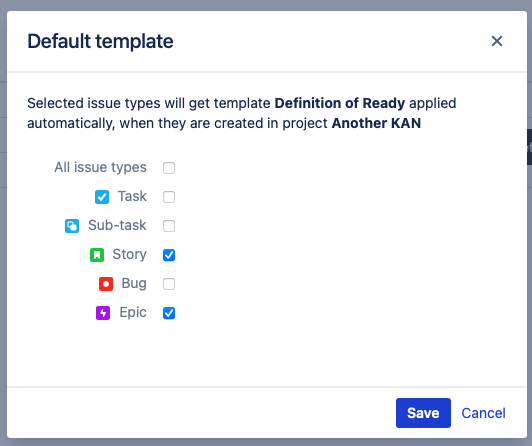
Set a Default Template
Default templates will be added automatically whenever a work item of the indicated type is created. To set a template as a default:
|
|