
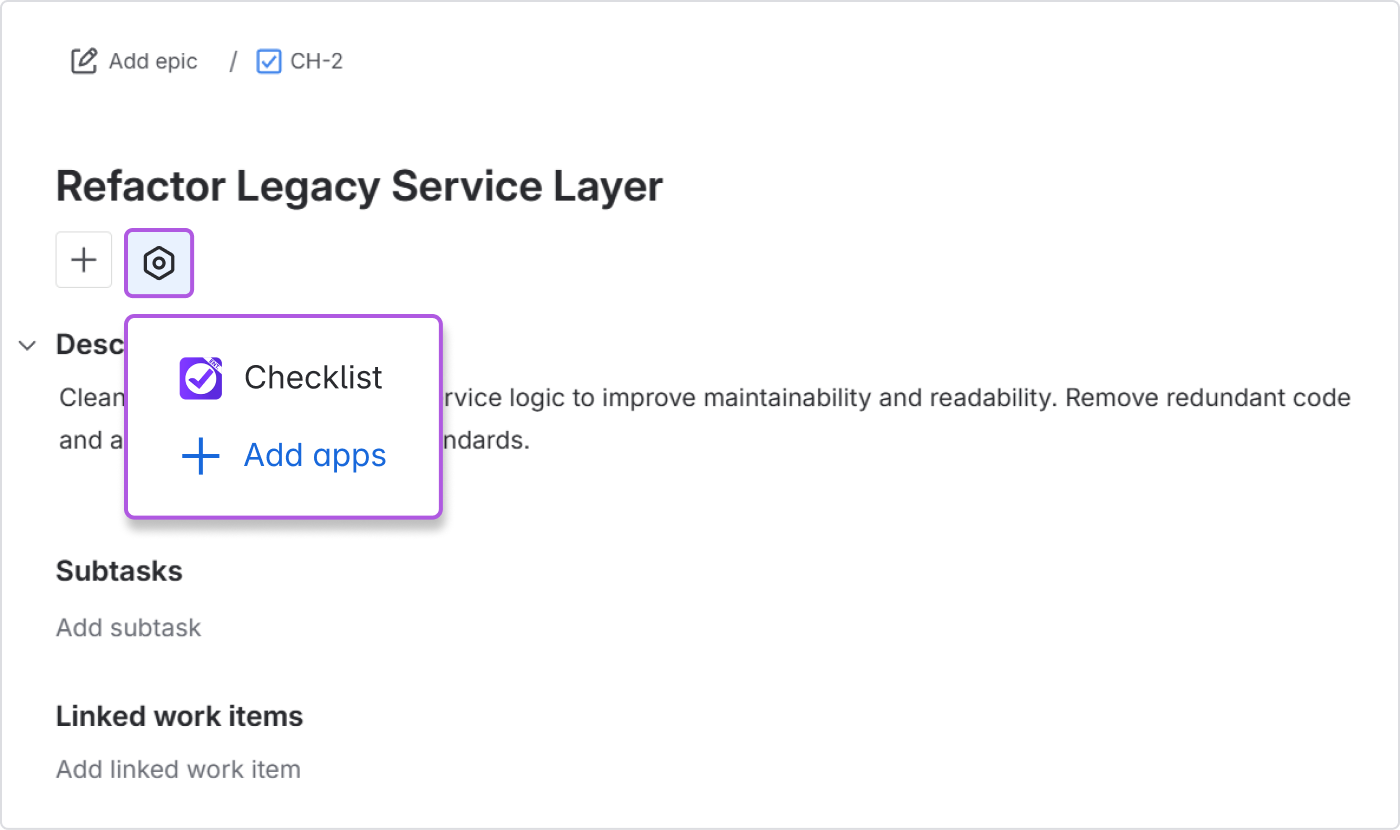
To add a checklist to a work item, click the Apps 
Depending on your site’s settings, it may be called differently such as Acceptance Criteria.
You can also find the checklist panel at the bottom of the Context pane on the right.
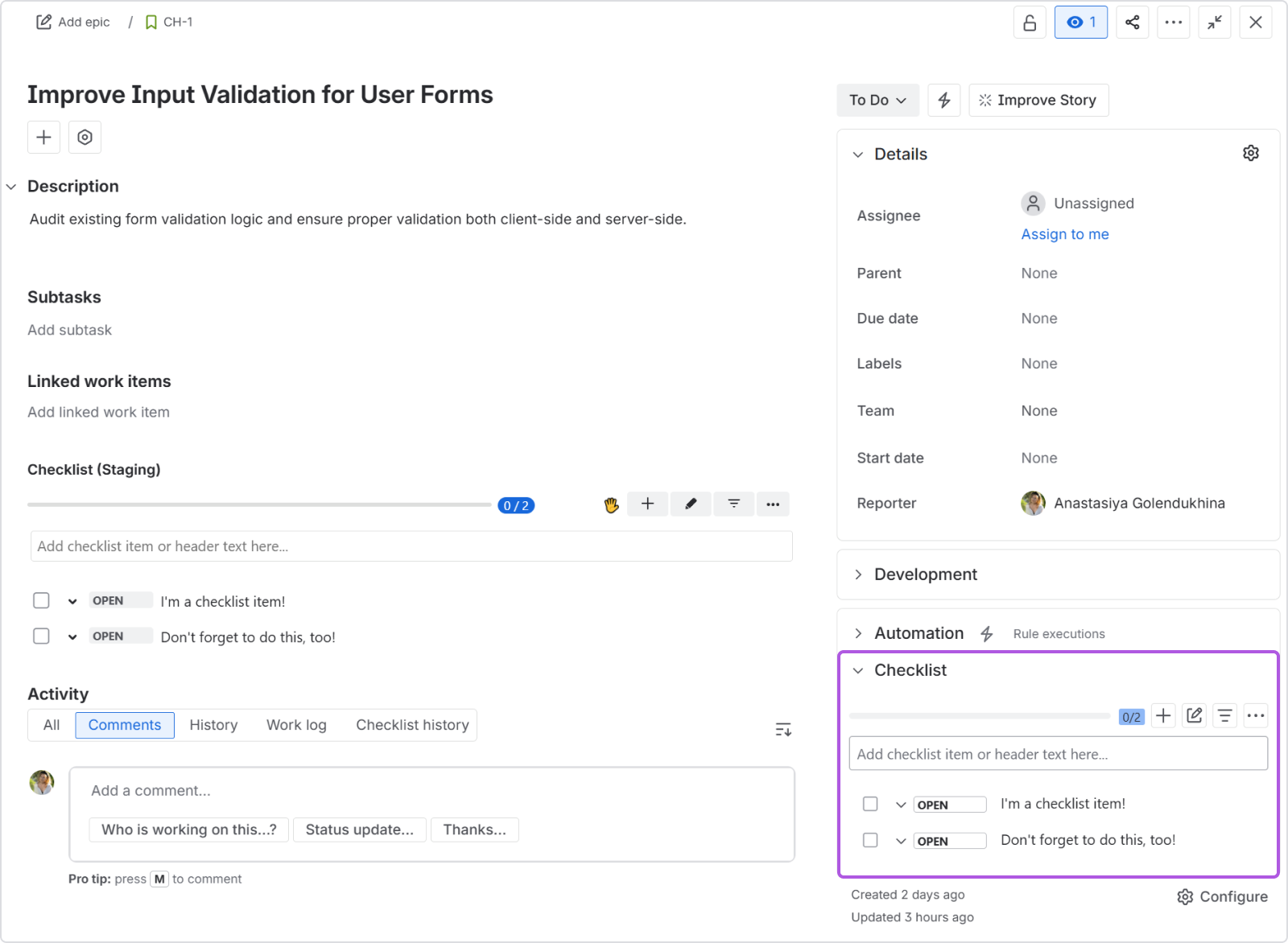
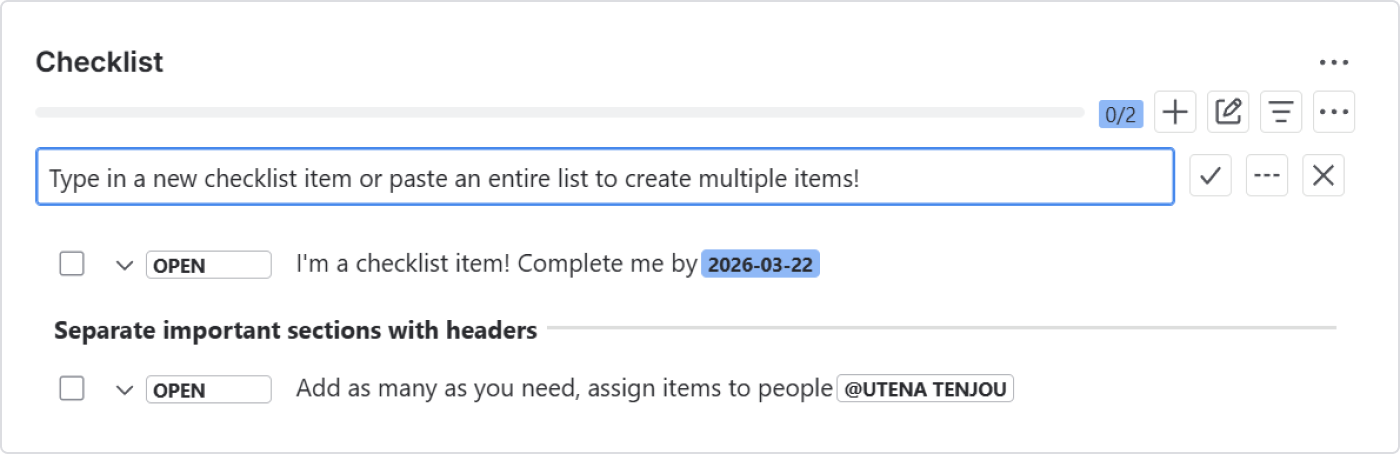
From there, you can start adding checklist items right away. To start creating a checklist simply type the first item in the text box at the top of the list. Hit enter or click on the checkmark when you’re done.
Hint:
If you need to transfer an entire list from someplace else, you can just paste the entire thing into the input field and the Checklist will automatically sort them out into individual items. This also works with Jira’s native action items if you want to organize them into a more actionable checklist.
Next up: Loading templates
Use a checklist from a previously saved template.