
On this page:
Making Clockwork Visible on Work Items
If Clockwork is enabled for your Space and Work Item type but you do not see it on the issue view, follow the steps below.
How to Show Clockwork on a Work Item
-
Open the Jira work item.
-
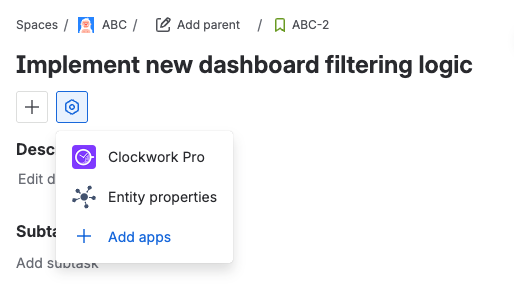
In the top section of the work item, click the Cog icon (Add content menu).
-
From the dropdown list, select:
-
Clockwork Pro, or
-
Clockwork Lite
-
-
The Clockwork panel will appear in the work item view.
Pinning Clockwork to a Project project admin
Project Admins can pin Clockwork so it automatically appears on all work items in a project.
To pin Clockwork
-
Open any work item in the project.
-
Open the Clockwork panel.
-
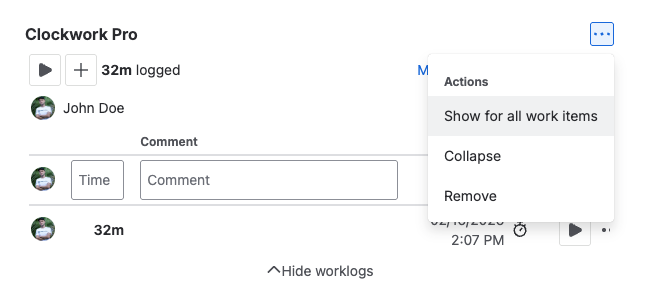
Click the “…” (More actions) menu in the top-right corner of the Clockwork panel.
-
Select Show for all work items.
Once pinned, Clockwork will automatically be visible on all work items in that project.
Unpinning Clockwork from a Project project admin
To remove automatic visibility:
-
Open the Clockwork panel.
-
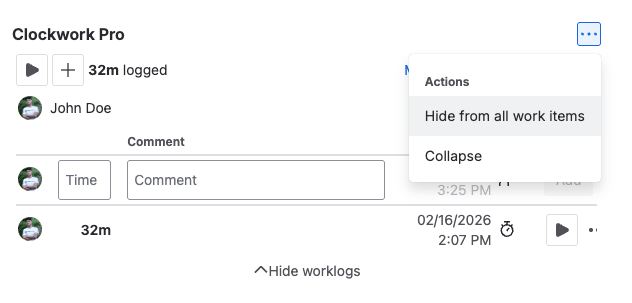
Click the “…” (More actions) menu.
-
Select Show for all work items.
Why Don’t I See Clockwork?
If Clockwork does not appear in the Cog menu:
-
Make sure Clockwork is enabled for your Space.
-
Make sure it is enabled for the specific Work Item type.