Global Project USER
Timezones and working hours can be set at three different levels:
-
The global setting (Jira settings > Apps > Clockwork configuration > General > Timezone & working hours) allows you to select the timezone (this will override the Jira setting) and working hours for your organization.
-
You can also set the timezone and work hours for a specific space (Space settings > Apps > Clockwork > General > Timezone & working Hours).
-
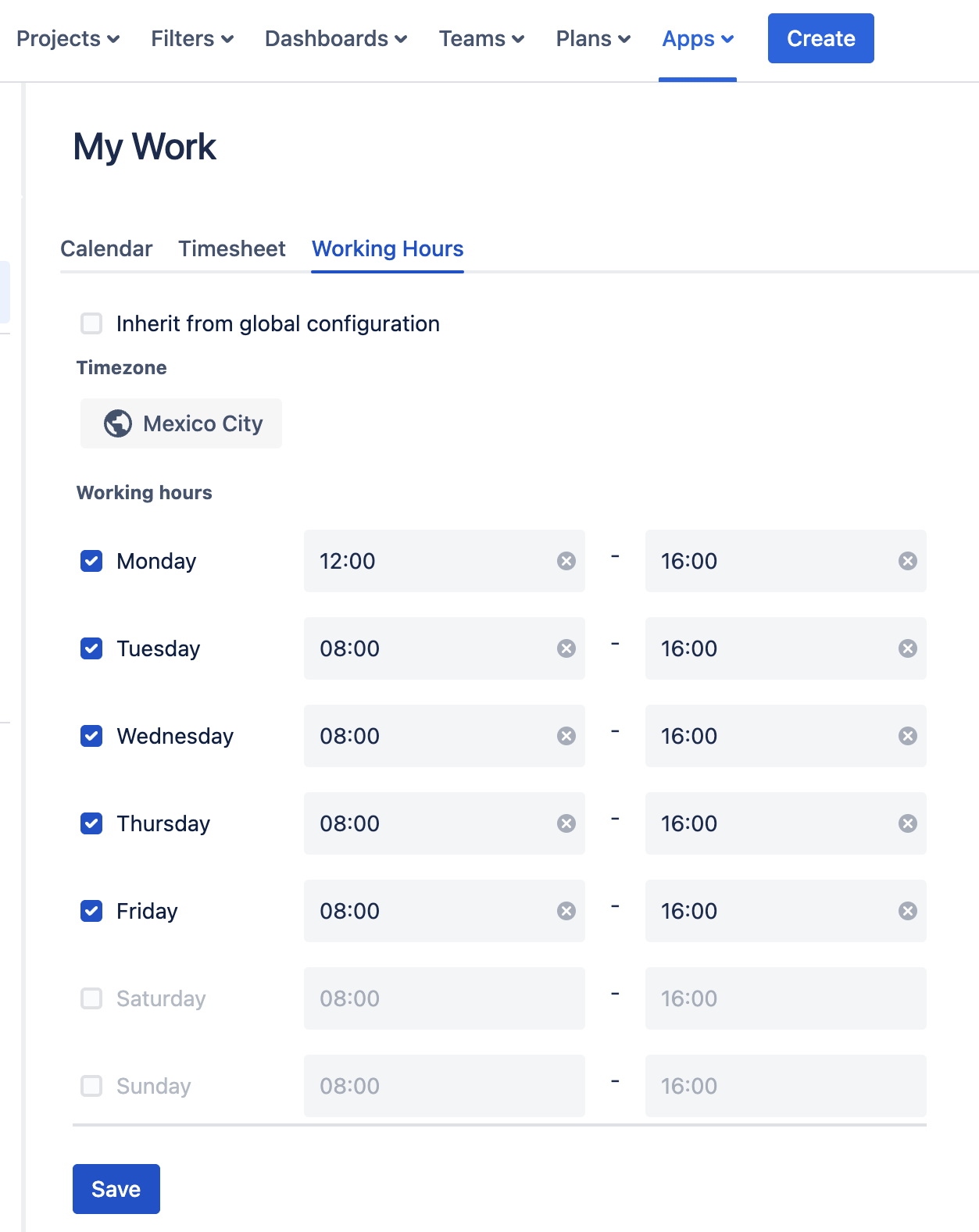
Individual users, if they have the Edit Own Working Hours permission, can configure their own timezone and working hours, by going to Apps > Clockwork in the main Jira menu and selecting Working hours.
Clockwork timers will always use the most specific Working hours available (assignee, then space, then global).
Timezone
Configure Global Timezone
To select the timezone for your organization:
-
Log in as a Jira administrator and navigate to Jira settings > Apps > Clockwork configuration > General > Timezone & working hours.
-
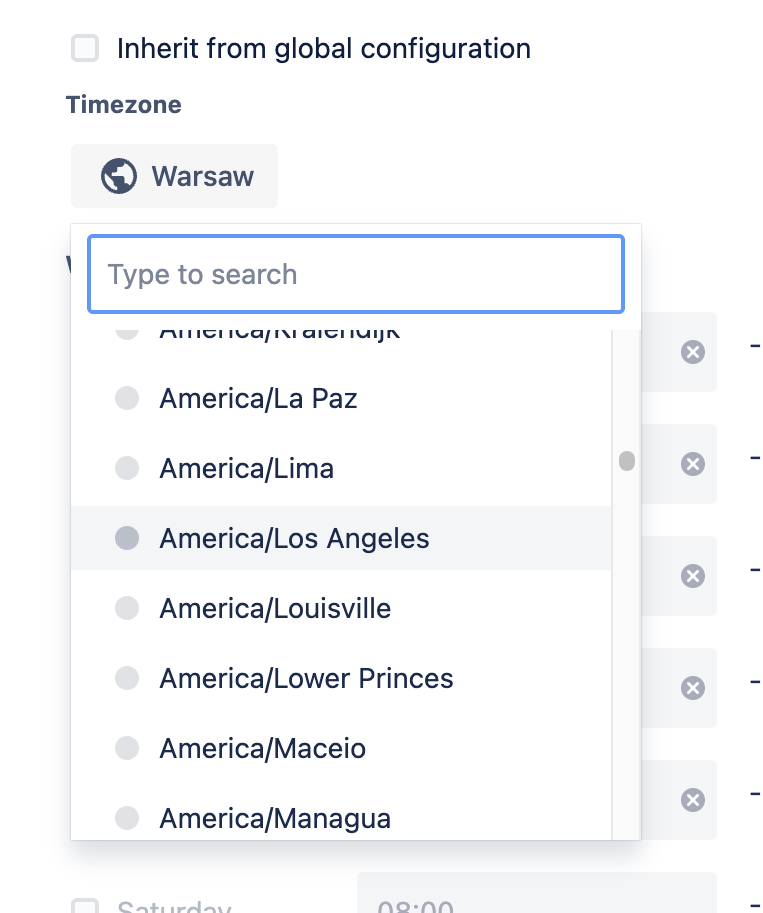
Click into the timezone field.
-
Scroll or use the search to find the bar to find the desire location.
-
Click the radio button to select the location.
Configure Timezone for a Specific space
spaces will inherit the global configuration, but you can configure a different timezone at the space level.
-
Navigate to space settings > Apps > Clockwork configuration > General > Timezone & working hours.
-
Uncheck the Inherit from global configuration option.
-
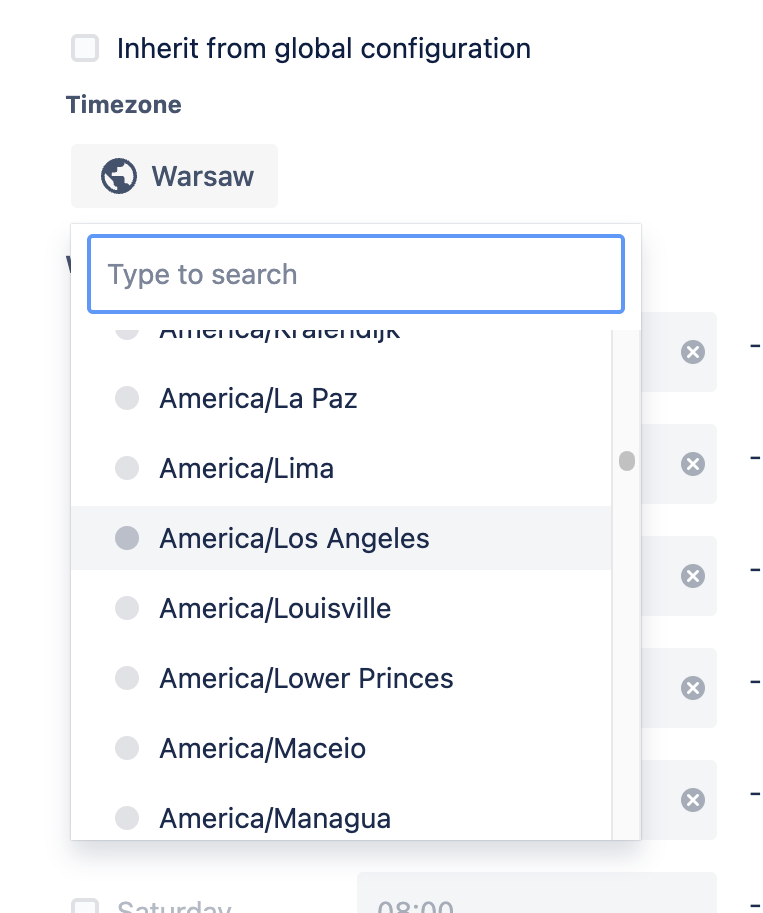
Click into the timezone field.
-
Scroll or use the search to find the bar to find the desire location.
-
Click the radio button to select the location.
Configure User Timezone
-
Navigate to Apps > Clockwork using the upper nav bar.
-
Select My Work from the left nav bar and click on the Working Hours tab.
-
Uncheck the Inherit from global configuration option.
-
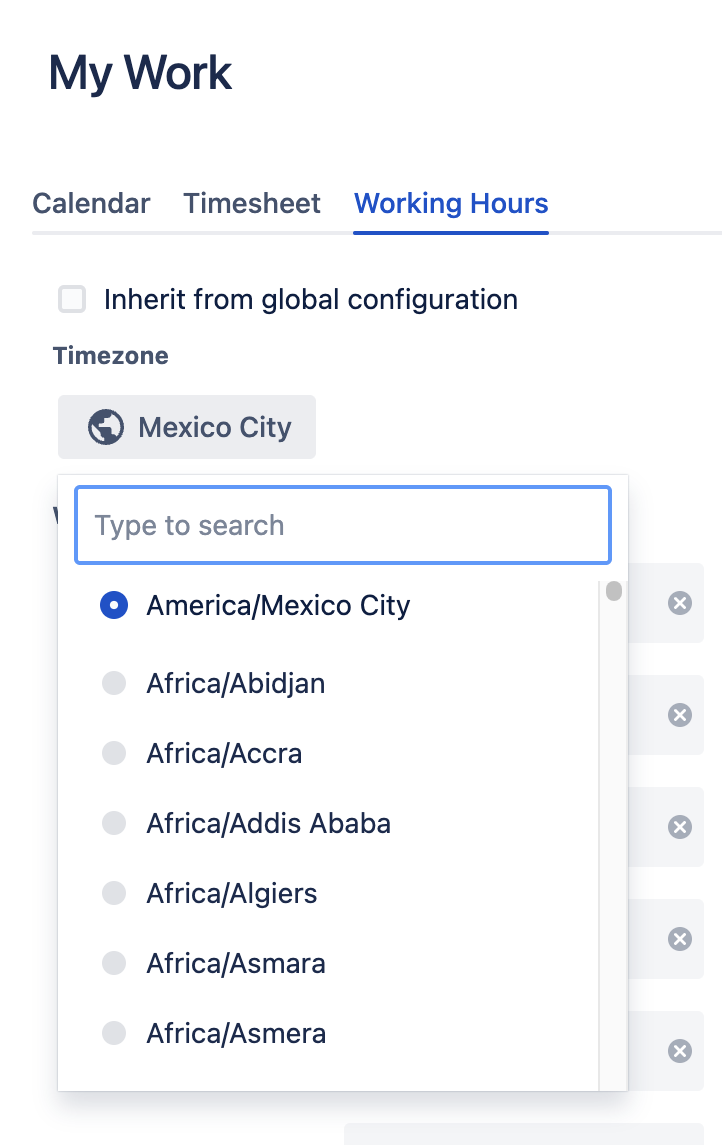
Click into the timezone field.
-
Scroll or use the search to find the bar to find the desire location.
-
Click the radio button to select the location.
-
Click Save.
Working Hours
Working hours are used to calculate the actual time the work item was being worked on. When using the Strict timers, the timer will run only during Working Hours. When using Flexible timers, if the timer is not stopped on the same day it was started, the timer will run for the amount of time set up in the Working hours.
Clockwork also uses Working hours to calculate the Time Spent on a work item. See this page for more information.
Working hours can also be used with other Clockwork features such as Log Work and Timesheets to highlight users who are working outside of the intended hours.
Configure Global Working Hours
-
Log in as a Jira administrator and navigate to Jira settings > Apps > Clockwork configuration > General > Timezone & working hours
-
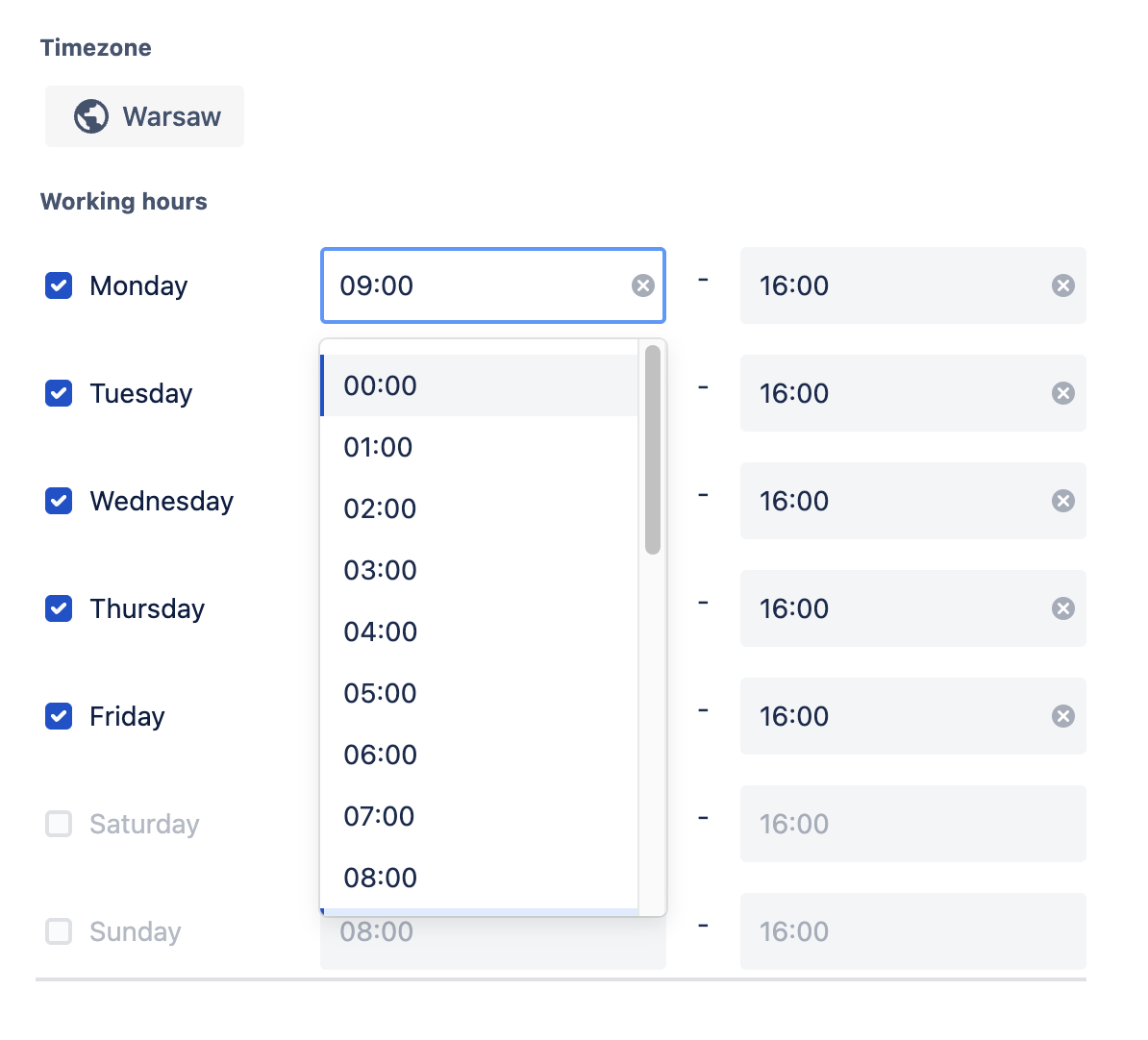
Use the checkboxes to select the working days.
-
Once a day of the week has been selected, the dropdown fields will be enabled, allowing you to set the start and stop time for each day.
Configure space Working Hours
-
Navigate to space settings > Apps > Clockwork configuration > General > Timezone & working hours
-
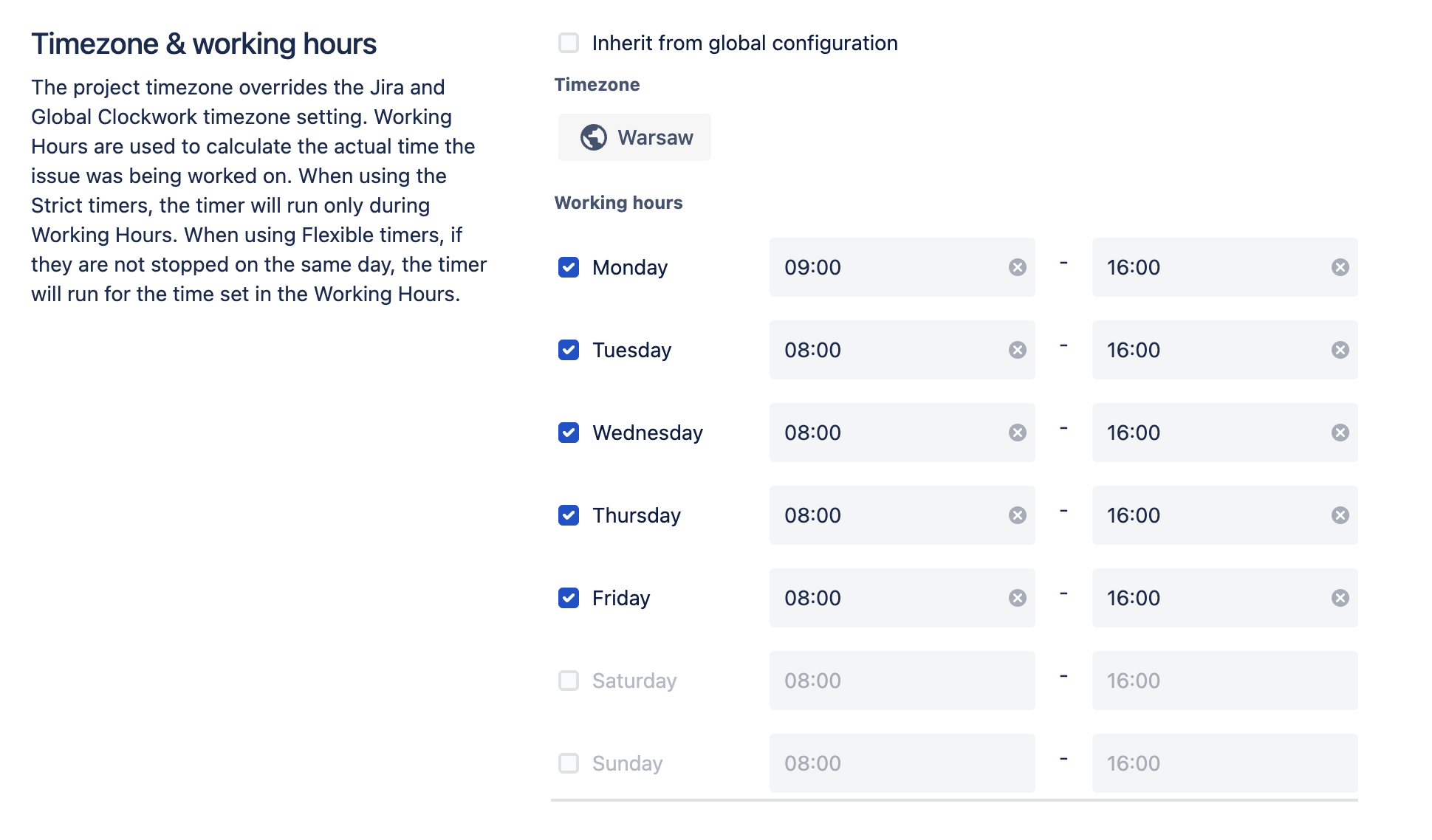
Uncheck the Inherit from global configuration option
-
Use the checkboxes to select the working days.
-
Once a day of the week has been selected, the dropdown fields will be enabled, allowing you to set the start and stop time for each day.
Configure User Working Hours
-
Navigate to Apps > Clockwork using the upper nav bar.
-
Select My Work from the left nav bar and click on the Working Hours tab.
-
Uncheck the Inherit from global configuration option
-
Use the checkboxes to select the working days.
-
Once a day of the week has been selected, the dropdown fields will be enabled, allowing you to set the start and stop time for each day.
-
Click Save.